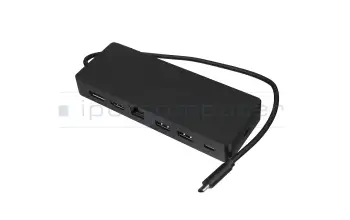
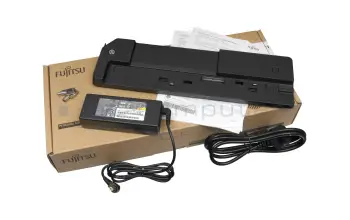
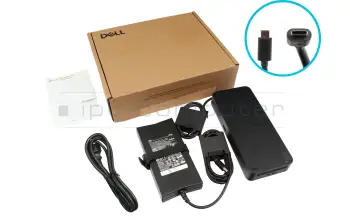
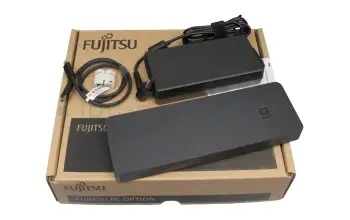
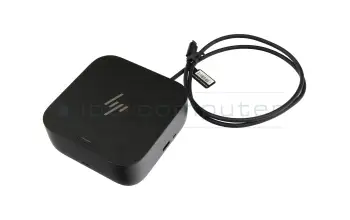
Port Replicators and Docking Stations for laptops

In case you use your laptop mostly stationary and you want to connect many peripheral devices such as printer, mouse, keyboard or external screens, a port replicator or a suitable docking station can be a very useful extension. As a result, the peripheral devices are no longer connected directly to the laptop and thus the common mess with all the cables can be avoided.

[Translate to Englisch:] Notebook Docking Station

The most purchased docking station

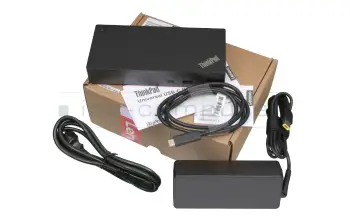
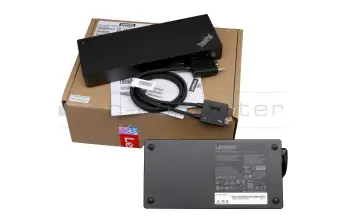
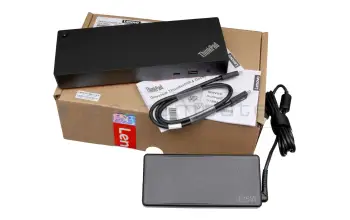
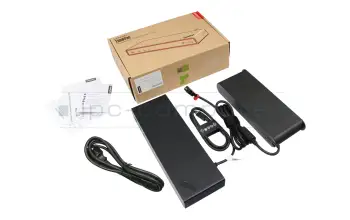
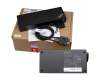
40AF0135EU Lenovo Hybrid-USB Port Replicator incl. 135W ac-adapter

40AF0135EU Lenovo Hybrid-USB Port Replicator incl. 135W ac-adapter
In stock
176.00
incl. Tax (19%)
plus shipping charges

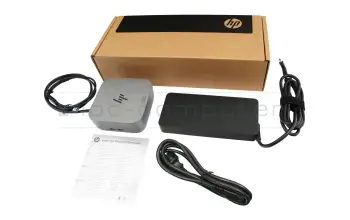
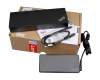
5TW10AA#ABB HP USB-C Dock G5 EURO incl. 120W ac-adapter
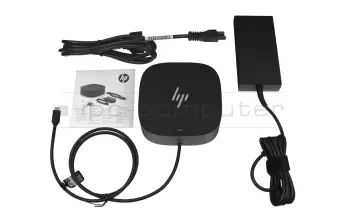
5TW10AA#ABB HP USB-C Dock G5 EURO incl. 120W ac-adapter
In stock
139.00
incl. Tax (19%)
plus shipping charges

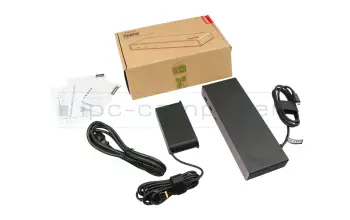
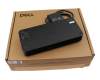
PRIPC1 IPC-Computer Dual 4K Hybrid-USB Docking Station incl. 130W ac-adapter

PRIPC1 IPC-Computer Dual 4K Hybrid-USB Docking Station incl. 130W ac-adapter
In stock
149.00
incl. Tax (19%)
plus shipping charges

4J0A2AA#ABB HP Thunderbolt Dockingstation G4 incl. 120W ac-adapter

4J0A2AA#ABB HP Thunderbolt Dockingstation G4 incl. 120W ac-adapter
In stock
183.00
incl. Tax (19%)
plus shipping charges

50H55AA HP Universal USB-C multiport hub Docking Station

50H55AA HP Universal USB-C multiport hub Docking Station
In stock
79.00
incl. Tax (19%)
plus shipping charges

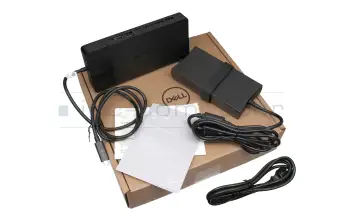
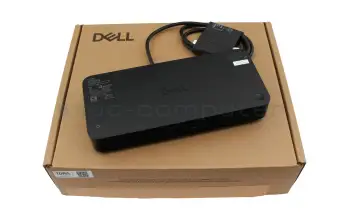
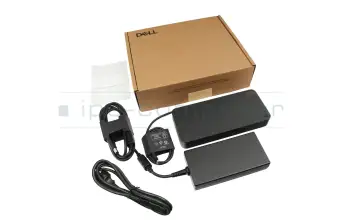
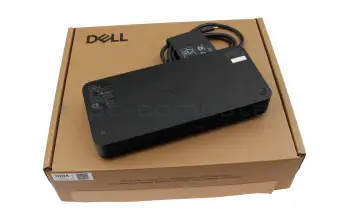
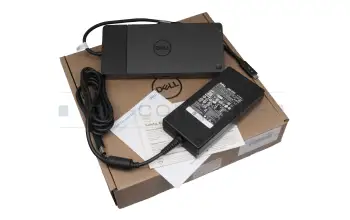
DELL-WD25 Dell ProDock WD25 incl. 130W ac-adapter

DELL-WD25 Dell ProDock WD25 incl. 130W ac-adapter
In stock
173.00
incl. Tax (19%)
plus shipping charges

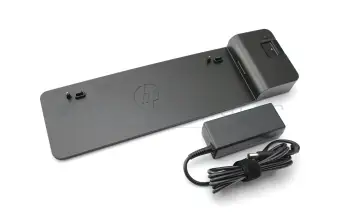
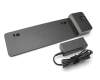
D9Y32AA#ABB HP UltraSlim Docking Station incl. 65W ac-adapter

D9Y32AA#ABB HP UltraSlim Docking Station incl. 65W ac-adapter
In stock
35.00
incl. Tax (19%)
plus shipping charges

SD25 Dell Pro Smart Dock SD25 incl. 180W ac-adapter

SD25 Dell Pro Smart Dock SD25 incl. 180W ac-adapter
In stock
205.00
incl. Tax (19%)
plus shipping charges

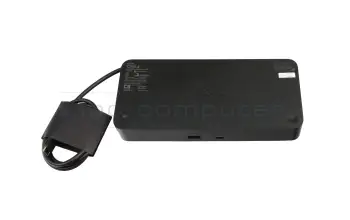
S26391-F1607-L219 Fujitsu FPCPR364 Docking Station incl. 90W ac-adapter

S26391-F1607-L219 Fujitsu FPCPR364 Docking Station incl. 90W ac-adapter
In stock
46.00
incl. Tax (19%)
plus shipping charges

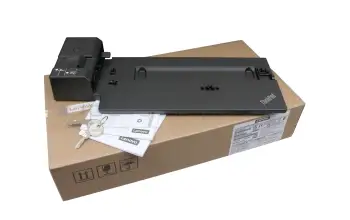
40AJ0135EU Lenovo ThinkPad Ultra Docking Station incl. 135W ac-adapter

40AJ0135EU Lenovo ThinkPad Ultra Docking Station incl. 135W ac-adapter
In stock
79.00
incl. Tax (19%)
plus shipping charges

210-BEYV Dell Universal Dock UD22 incl. 130W ac-adapter

210-BEYV Dell Universal Dock UD22 incl. 130W ac-adapter
In stock
189.00
incl. Tax (19%)
plus shipping charges

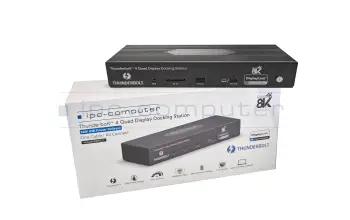
PRIPC2 IPC-Computer Thunderbolt 4 Quad-Display Port Replicator incl. 160W ac-adapter

PRIPC2 IPC-Computer Thunderbolt 4 Quad-Display Port Replicator incl. 160W ac-adapter
In stock
189.00
incl. Tax (19%)
plus shipping charges

4J0G4AA HP Thunderbolt Dockingstation G4 incl. 280W ac-adapter

4J0G4AA HP Thunderbolt Dockingstation G4 incl. 280W ac-adapter
In stock
232.00
incl. Tax (19%)
plus shipping charges

WD19S180W Dell Dockingstation WD19S incl. 180W ac-adapter

WD19S180W Dell Dockingstation WD19S incl. 180W ac-adapter
In stock
239.00
incl. Tax (19%)
plus shipping charges

5TW13AA#ABB HP Universal Dock G2 incl. 120W ac-adapter DP 4K

5TW13AA#ABB HP Universal Dock G2 incl. 120W ac-adapter DP 4K
In stock
143.00
incl. Tax (19%)
plus shipping charges

210-AZBX Dell Dockingstation WD19S incl. 130W ac-adapter

210-AZBX Dell Dockingstation WD19S incl. 130W ac-adapter
In stock
215.00
incl. Tax (19%)
plus shipping charges

40B00135EU Lenovo ThinkPad Universal Thunderbolt 4 Dock incl. 135W ac-adapter

40B00135EU Lenovo ThinkPad Universal Thunderbolt 4 Dock incl. 135W ac-adapter
In stock
226.00
incl. Tax (19%)
plus shipping charges

40B00300EU Lenovo ThinkPad Thunderbolt 4 Workstation Dock incl. 300W ac-adapter

40B00300EU Lenovo ThinkPad Thunderbolt 4 Workstation Dock incl. 300W ac-adapter
In stock
259.00
incl. Tax (19%)
plus shipping charges

WD22TB4 Dell Thunderbolt Dock WD22TB4 incl. 180W ac-adapter

WD22TB4 Dell Thunderbolt Dock WD22TB4 incl. 180W ac-adapter
In stock
399.00
incl. Tax (19%)
plus shipping charges

FPCPR401BP Fujitsu Thunderbolt 4 (Trident2) Port Replicator incl. 170W ac-adapter

FPCPR401BP Fujitsu Thunderbolt 4 (Trident2) Port Replicator incl. 170W ac-adapter
In stock
129.00
incl. Tax (19%)
plus shipping charges

40B10135EU Lenovo ThinkPad Universal Thunderbolt 4 Smart Dock incl. 135W ac-adapter

40B10135EU Lenovo ThinkPad Universal Thunderbolt 4 Smart Dock incl. 135W ac-adapter
In stock
328.00
incl. Tax (19%)
plus shipping charges

40A10090EU Lenovo ThinkPad Pro Docking Station incl. 90W ac-adapter b-stock

40A10090EU Lenovo ThinkPad Pro Docking Station incl. 90W ac-adapter b-stock
Small stock
59.00
incl. Tax (19%)
plus shipping charges

2UK37AA#ABB HP Thunderbolt Dockingstation G2 incl. 120W ac-adapter b-stock

2UK37AA#ABB HP Thunderbolt Dockingstation G2 incl. 120W ac-adapter b-stock
Small stock
117.00
incl. Tax (19%)
plus shipping charges

SD25TB4 Dell Pro Thunderbolt 4 Smart Dock - SD25TB4 incl. 180W ac-adapter

SD25TB4 Dell Pro Thunderbolt 4 Smart Dock - SD25TB4 incl. 180W ac-adapter
In stock
248.00
incl. Tax (19%)
plus shipping charges

S26391-F3327-L100 Fujitsu USB Typ-C Port Replicator incl. 90W ac-adapter

S26391-F3327-L100 Fujitsu USB Typ-C Port Replicator incl. 90W ac-adapter
In stock
99.00
incl. Tax (19%)
plus shipping charges

All Lenovo laptop docking stations
All HP laptopdocking stations
All Fujitsu laptop docking stations
All Dell laptop docking stations
All IPC laptop docking stations

Find the right docking station by model or features

Noch 904 Produkte in Ihrem Filter
904

Alternative for 26D32AA#ABL HP USB-C Dock G5 EURO incl. 120W ac-adapter

Alternative for 26D32AA#ABL HP USB-C Dock G5 EURO incl. 120W ac-adapter
In stockshipping today.Express shipping possible.
139.00
incl. Tax (19%)
plus shipping charges

Alternative for 5TW10UT#ABA HP USB-C Dock G5 EURO incl. 120W ac-adapter

Alternative for 5TW10UT#ABA HP USB-C Dock G5 EURO incl. 120W ac-adapter
In stockshipping today.Express shipping possible.
139.00
incl. Tax (19%)
plus shipping charges

AW5M5UT HP Port Replicator / Docking Station

AW5M5UT HP Port Replicator / Docking Station
Small stockshipping today.Express shipping possible.
268.00
incl. Tax (19%)
plus shipping charges

AW5M5UT#ABB HP Port Replicator / Docking Station

AW5M5UT#ABB HP Port Replicator / Docking Station
Small stockshipping today.Express shipping possible.
268.00
incl. Tax (19%)
plus shipping charges

9X481UT HP Port Replicator / Docking Station

9X481UT HP Port Replicator / Docking Station
Small stockshipping today.Express shipping possible.
227.00
incl. Tax (19%)
plus shipping charges

9X481UT#ABB HP Port Replicator / Docking Station

9X481UT#ABB HP Port Replicator / Docking Station
Small stockshipping today.Express shipping possible.
227.00
incl. Tax (19%)
plus shipping charges

D9Y32AA HP UltraSlim Docking Station incl. 65W ac-adapter

D9Y32AA HP UltraSlim Docking Station incl. 65W ac-adapter
In stockshipping today.Express shipping possible.
35.00
incl. Tax (19%)
plus shipping charges

D9Y32AA#ABB HP UltraSlim Docking Station incl. 65W ac-adapter

D9Y32AA#ABB HP UltraSlim Docking Station incl. 65W ac-adapter
In stockshipping today.Express shipping possible.
35.00
incl. Tax (19%)
plus shipping charges

D9Y32ET HP UltraSlim Docking Station incl. 65W ac-adapter

D9Y32ET HP UltraSlim Docking Station incl. 65W ac-adapter
In stockshipping today.Express shipping possible.
35.00
incl. Tax (19%)
plus shipping charges

HSTNN-1X10 HP UltraSlim Docking Station incl. 65W ac-adapter

HSTNN-1X10 HP UltraSlim Docking Station incl. 65W ac-adapter
In stockshipping today.Express shipping possible.
35.00
incl. Tax (19%)
plus shipping charges

SD20R56774 Lenovo ThinkPad Ultra Docking Station incl. 135W ac-adapter

SD20R56774 Lenovo ThinkPad Ultra Docking Station incl. 135W ac-adapter
In stockshipping today.Express shipping possible.
79.00
incl. Tax (19%)
plus shipping charges

5D20X62306 Lenovo ThinkPad Ultra Docking Station incl. 135W ac-adapter

5D20X62306 Lenovo ThinkPad Ultra Docking Station incl. 135W ac-adapter
In stockshipping today.Express shipping possible.
79.00
incl. Tax (19%)
plus shipping charges

CP734176-01 Fujitsu FPCPR364 Docking Station incl. 90W ac-adapter

CP734176-01 Fujitsu FPCPR364 Docking Station incl. 90W ac-adapter
In stockshipping today.Express shipping possible.
46.00
incl. Tax (19%)
plus shipping charges

FPCPR364 Fujitsu FPCPR364 Docking Station incl. 90W ac-adapter

FPCPR364 Fujitsu FPCPR364 Docking Station incl. 90W ac-adapter
In stockshipping today.Express shipping possible.
46.00
incl. Tax (19%)
plus shipping charges

HSN-IX02 HP USB-C Dock G5 EURO incl. 120W ac-adapter

HSN-IX02 HP USB-C Dock G5 EURO incl. 120W ac-adapter
In stockshipping today.Express shipping possible.
139.00
incl. Tax (19%)
plus shipping charges

The latest Docking Stations in our assortment

40AF0135EU Lenovo Hybrid-USB Port Replicator incl. 135W ac-adapter
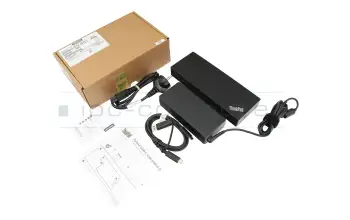
40AF0135EU Lenovo Hybrid-USB Port Replicator incl. 135W ac-adapter
In stock
176.00
incl. Tax (19%)
plus shipping charges

40AF0135EU# Lenovo Hybrid-USB Port Replicator incl. 135W ac-adapter

40AF0135EU# Lenovo Hybrid-USB Port Replicator incl. 135W ac-adapter
In stock
176.00
incl. Tax (19%)
plus shipping charges

DUD9011D1 Lenovo Hybrid-USB Port Replicator incl. 135W ac-adapter

DUD9011D1 Lenovo Hybrid-USB Port Replicator incl. 135W ac-adapter
In stock
176.00
incl. Tax (19%)
plus shipping charges

SD20Q13457 Lenovo Hybrid-USB Port Replicator incl. 135W ac-adapter

SD20Q13457 Lenovo Hybrid-USB Port Replicator incl. 135W ac-adapter
In stock
176.00
incl. Tax (19%)
plus shipping charges

26D32AA#ABB HP USB-C Dock G5 EURO incl. 120W ac-adapter

26D32AA#ABB HP USB-C Dock G5 EURO incl. 120W ac-adapter
In stock
139.00
incl. Tax (19%)
plus shipping charges

Alternative for 26D32AA#ABL HP USB-C Dock G5 EURO incl. 120W ac-adapter

Alternative for 26D32AA#ABL HP USB-C Dock G5 EURO incl. 120W ac-adapter
In stock
139.00
incl. Tax (19%)
plus shipping charges

5TW10AA HP USB-C Dock G5 EURO incl. 120W ac-adapter

5TW10AA HP USB-C Dock G5 EURO incl. 120W ac-adapter
In stock
139.00
incl. Tax (19%)
plus shipping charges

5TW10AA#ABB HP USB-C Dock G5 EURO incl. 120W ac-adapter

5TW10AA#ABB HP USB-C Dock G5 EURO incl. 120W ac-adapter
In stock
139.00
incl. Tax (19%)
plus shipping charges

Alternative for 5TW10UT#ABA HP USB-C Dock G5 EURO incl. 120W ac-adapter

Alternative for 5TW10UT#ABA HP USB-C Dock G5 EURO incl. 120W ac-adapter
In stock
139.00
incl. Tax (19%)
plus shipping charges

HSN-IX02 HP USB-C Dock G5 EURO incl. 120W ac-adapter

HSN-IX02 HP USB-C Dock G5 EURO incl. 120W ac-adapter
In stock
139.00
incl. Tax (19%)
plus shipping charges

L56522-001 HP USB-C Dock G5 EURO incl. 120W ac-adapter

L56522-001 HP USB-C Dock G5 EURO incl. 120W ac-adapter
In stock
139.00
incl. Tax (19%)
plus shipping charges

L61608-001 HP USB-C Dock G5 EURO incl. 120W ac-adapter

L61608-001 HP USB-C Dock G5 EURO incl. 120W ac-adapter
In stock
139.00
incl. Tax (19%)
plus shipping charges

L61609-001 HP USB-C Dock G5 EURO incl. 120W ac-adapter

L61609-001 HP USB-C Dock G5 EURO incl. 120W ac-adapter
In stock
139.00
incl. Tax (19%)
plus shipping charges

L64086-001 HP USB-C Dock G5 EURO incl. 120W ac-adapter

L64086-001 HP USB-C Dock G5 EURO incl. 120W ac-adapter
In stock
139.00
incl. Tax (19%)
plus shipping charges

L64087-001 HP USB-C Dock G5 EURO incl. 120W ac-adapter

L64087-001 HP USB-C Dock G5 EURO incl. 120W ac-adapter
In stock
139.00
incl. Tax (19%)
plus shipping charges

L67999-B21 HP USB-C Dock G5 EURO incl. 120W ac-adapter

L67999-B21 HP USB-C Dock G5 EURO incl. 120W ac-adapter
In stock
139.00
incl. Tax (19%)
plus shipping charges

M29510-001 HP USB-C Dock G5 EURO incl. 120W ac-adapter

M29510-001 HP USB-C Dock G5 EURO incl. 120W ac-adapter
In stock
139.00
incl. Tax (19%)
plus shipping charges

IPC Docking Station IPC-Computer Dual 4K Hybrid-USB Docking Station incl. 130W ac-adapter

IPC Docking Station IPC-Computer Dual 4K Hybrid-USB Docking Station incl. 130W ac-adapter
In stock
149.00
incl. Tax (19%)
plus shipping charges

PRIPC1 IPC-Computer Dual 4K Hybrid-USB Docking Station incl. 130W ac-adapter
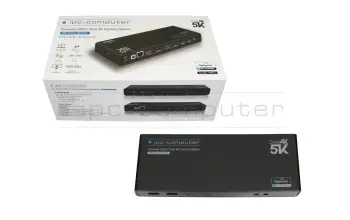
PRIPC1 IPC-Computer Dual 4K Hybrid-USB Docking Station incl. 130W ac-adapter
In stock
149.00
incl. Tax (19%)
plus shipping charges

IPC Port-Replicator IPC-Computer Dual 4K Hybrid-USB Docking Station incl. 130W ac-adapter

IPC Port-Replicator IPC-Computer Dual 4K Hybrid-USB Docking Station incl. 130W ac-adapter
In stock
149.00
incl. Tax (19%)
plus shipping charges

G-PRIPC1 IPC-Computer Dual 4K Hybrid-USB Docking Station incl. 130W ac-adapter

G-PRIPC1 IPC-Computer Dual 4K Hybrid-USB Docking Station incl. 130W ac-adapter
In stock
149.00
incl. Tax (19%)
plus shipping charges

4J0A2AA HP Thunderbolt Dockingstation G4 incl. 120W ac-adapter
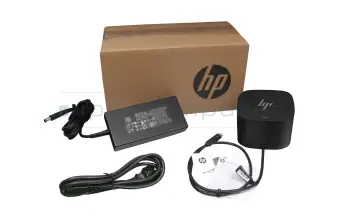
4J0A2AA HP Thunderbolt Dockingstation G4 incl. 120W ac-adapter
In stock
183.00
incl. Tax (19%)
plus shipping charges

4J0A2AA#ABB HP Thunderbolt Dockingstation G4 incl. 120W ac-adapter

4J0A2AA#ABB HP Thunderbolt Dockingstation G4 incl. 120W ac-adapter
In stock
183.00
incl. Tax (19%)
plus shipping charges

M88251-001 HP Thunderbolt Dockingstation G4 incl. 120W ac-adapter

M88251-001 HP Thunderbolt Dockingstation G4 incl. 120W ac-adapter
In stock
183.00
incl. Tax (19%)
plus shipping charges

AJ0A2ET#ABB HP Thunderbolt Dockingstation G4 incl. 120W ac-adapter

AJ0A2ET#ABB HP Thunderbolt Dockingstation G4 incl. 120W ac-adapter
In stock
183.00
incl. Tax (19%)
plus shipping charges

USB-C or Thunderbolt 3 port-replicators

Port replicators, that are connected via USB-C or Thunderbolt 3 form a third category, that unifies the advantages of the other two. Both connections are standardized and present on more and more notebooks and they also both have a high bandwidth. Therefore, they can easily be used to connect a plethora of USB-devices, card readers, LAN and so on without any problem. Additionally, these connection can also carry a DisplayPort signal, which allows for the connection of multiple high-resolution displays. USB Power-Delivery also allows you to charge the Notebook using only one cable. Additionally, many USB-C/Thunderbolt 3 port replicators have an on/off button and therefore also allow you to use the notebook with the lid closed.

Advantages of port replicators and docking stations - A Comparison

 Docking StationsPort ReplikatorenUSB-C/Thunderbolt 3
Extension of ports
Direct charge of the laptopX
Compatible with different manufacturersX
Laptop closed operationalX

Universal USB-C Dual 4K Docking Station from IPC-Computer incl. 100W ac-adapter

In general, the port replicator from IPC Computer perfectly fulfills main tasks of a port replicator or docking station. The workplace organization is facilitated. Due to the simple, modern design and the better organization of the numerous cables, the desk looks tidier than ever. All wishes are fulfilled in terms of specifications as well. One standout feature is the ability to connect two 4K monitors simultaneously. Most competing products only allow you to run one 4K screen. Alternatively, you can also use a 5K screen with the IPC port replicator. Furthermore, the two USB-C and four USB3.0 ports allow connecting a wide range of accessories.


Lenovo ThinkPad Hybrid USB-C Dock incl. 135W ac-adapter

Solve limited connectivity quickly and safely with this port replicator and easily connect a mouse, printer, other USB devices. Mirror or extend your desktop to multiple external monitors.

With a USB-C port, not only do you not need an additional power adapter to run your notebook, you can even charge your battery with the existing port replicator. However, please note that a maximum power consumption of 100 watts is possible via the USB-C port. If your notebook has a higher power consumption, you will still need the notebook's power supply for operation.

Lenovo ThinkPad Gen 2 Port Replikator USB-C Dock 40AS0090EU

If you want to extend the display from a tablet to external screens, you are well served with this port replicator. The laptop you want to connect has to have an USB-C output. On top of that, with this port replicator you can also connect your smartphone or tablet. In order for that to work, the mobile device must have a USB-C port and must support the function to duplicate the display.

Lenovo ThinkPad Port Replikator USB-C Dock 40A90090EU

Dell WD19TB Thunderbolt 3 port replicator incl. 180W ac-adapter

With its multiple ports, the Dell Thunderbolt 3 Port Replicator allows you to connect up to 4 displays simultaneously. It also has twice the data transfer rate of 40Gbps compared to its predecessor, the Thunderbolt 2. The scope of delivery includes installation instructions, a 180W power supply and a plug that fits the power supply.
 

HP UltraSlim Docking Station D9Y32AA#ABB

This HP docking station has an integrated anti-theft device and also offers two different locking mechanism for theft protection. Adding onto that it also has a USB 3.0 port with a constant power supply which can charge mobile devices. The docking station is suitable e.g. for the HP EliteBook 750 G-Series or the ProBook 640 G2. Included in the scope of supply are a user manual as well as a 65Watt power supply.


[Translate to Englisch:] HP UltraSlim Dockingstation D9Y32AA#ABB

Port Replicator and Docking Station FAQ

Here you will find all important questions and answers concerning dockings and port replicators

  • After the Windows update, a display driver error occurs with the docking station. What can I do?

    If you are no longer able to connect multiple screens via your PRIPC1 docking station after the last Windows update and you receive the error message DisplayLink USB Graphics Device: Driver error, your docking station is not defective. There are two possible solutions:

    1. install the latest display drivers Please try to download and install the latest display drivers directly from the manufacturer.

    2. uninstall the Windows update If updating the drivers does not solve the problem, you can try to manually remove the last installed Windows update:

    1. To do this, open "Settings" by selecting the "Gear" in the Start menu.
    2. Then click on "Update & Security".
    3. In the "Windows Update" tab, select the "Show update history" option.
    4. Then click on "Uninstall updates".
    5. Select an update here, the updates are sorted chronologically and the latest one is displayed at the top. Click on "Uninstall" and confirm by clicking on "Yes".

    Caution: Not all Windows updates can be uninstalled. If uninstalling is not possible or does not solve the problem, you will unfortunately usually have to wait for a subsequent Windows update that fixes this error on the part of Microsoft.


    Expert tip: To avoid such problems in the future, you can activate the notifications in the DisplayLink Manager. This will let you know immediately when a new software version is available that has been specially adapted to the latest Windows changes.

  • After updating my Firefox browser, the streaming service Netflix no longer shows a picture when I start a movie. What can I do?

    If the sound is running on Netflix but the picture remains black, it usually helps to deactivate hardware acceleration in Firefox. Simply proceed as follows:

    • Open settings: Click on the menu with the three bars in the top right-hand corner of Firefox and select Settings.
    • Find the Performance section: In the General tab, scroll down until you see the Performance section.
    • Disable hardware acceleration: First uncheck Use recommended performance settings. Only then will the Use hardware acceleration if available option appear. Remove the tick here too.
    • Restart browser: Close Firefox completely and restart it.

    Netflix's copy protection should now work correctly with your browser again and the image should be displayed as usual.

    A small note: If you are using a docking station with DisplayLink technology, the problem may also be due to the general copy protection (HDCP). In this case, deactivating hardware acceleration will unfortunately not help, as DisplayLink technically prevents the playback of protected content on external monitors.

  • Are there any restrictions when I use my MacBook with Displaylink?

    DisplayLink is a software solution for image transmission. As the signal is sent compressed via the USB channel, the following points arise:

    • No Netflix and co. (HDCP problem): Due to copy protection, services such as Netflix, Disney+ or Amazon Prime remain black on DisplayLink monitors. This content only works on the MacBook display or on natively connected monitors.
    • Higher CPU load: As the main processor has to calculate the image, the MacBook can get a little warmer when performing very CPU-intensive tasks. With M1 chips and newer, however, this is hardly noticeable in everyday use.
    • Limited gaming suitability: The technology is ideal for office work. For professional gaming, however, the slight delay (latency) and the refresh rate, which is usually limited to 60 Hz, are a disadvantage.
    • Driver dependency: The DisplayLink Manager must always be running in the background. After macOS updates, it is occasionally necessary to update the driver. In addition, screen recording must be enabled once in the system settings.
    • Additional features: Functions such as the monitor pivot (rotation) or operation with the lid closed (clamshell mode) usually work without problems with the current drivers, but depend on the software version.

    DisplayLink is the perfect solution for bypassing the monitor limits of Apple chips in the home office. A native connection is the better choice for home cinema evenings or fast gaming.

  • Can I also use a screen vertically on the docking station?

    Windows: Yes, this is possible without any problems. All you have to do is select the appropriate monitor in the Windows display settings and change the value for the screen orientation option to portrait format.

    macOS: No, unfortunately this is not possible. As the docking station works under macOS in combination with the DisplayLink software, there are technical restrictions here. Unfortunately, DisplayLink does not currently support vertical use (pivot function) under macOS.


    Tip: If you want to use a monitor vertically on the Mac, it must be connected directly to the MacBook (e.g. via USB-C or HDMI) and not via the DisplayLink docking station.

  • Can I also use an Apple MacBook Air/Pro M2 with the docking station?

    Yes, you can operate both a MacBook Air and a MacBook Pro with M1 or M2 chip with the docking station without any problems.

    Here are the most important details for you:

    • Compatibility: Although the M1 and M2 processors differ in terms of performance, they use the same architecture for video output via USB-C or Thunderbolt.
    • Special feature at Apple: Apple often only allows the connection of a single external monitor with the standard M1 and M2 processors. With the DisplayLink technology of our docking station, however, you can bypass this restriction and use multiple screens on your MacBook.
    • Driver: For everything to work smoothly, you need to install the latest DisplayLink Manager on your Mac and enable screen recording in the system settings.

    Tip: With the MacBook Air, make sure that the docking station provides sufficient charging power. As the Air does not have its own charging port, it is supplied with power via the same cable that your monitors and USB devices use.

  • Can I also use my laptop on a docking station when it is closed?

    Yes, this is possible. The following steps are necessary to ensure that the laptop continues to run when closed and does not go into standby mode:

    • Accessories: External monitors, keyboard and mouse must be connected to the docking station.
    • Power: The laptop must be charged via its power supply unit or the docking station.
    • Settings: In the Windows power options, you must select the Do nothing setting under the When closing option.
    • Important note: Some laptops require an open keyboard surface for cooling. If your device gets very hot, you should leave it open a little to be on the safe side.

    You can see the exact settings in this video:

  • Can I also use the docking station with only 2 HDMI or 2 DisplayPort connections?

    Yes, this is possible without any problems. If you want to connect two external monitors, please pay attention to the labeling of the ports on the docking station.

    To operate two monitors, one port from the Display 1 group and one port from the Display 2 group must be assigned. It does not matter whether you choose HDMI or DisplayPort. For example, you can use two HDMI cables, two DisplayPort cables or a combination of both.

  • Can I use a USB-C/USB 3.0 port replicator from another manufacturer?

    Yes, this is generally possible. As standards such as USB-C, USB 3.0 and Thunderbolt work across all manufacturers, you are not necessarily tied to the brand of your laptop.

    However, to ensure that the docking station works properly, you should pay attention to the following points:

    • The right connection: Check whether your laptop has a USB-C port with DisplayPort Alt Mode (for image transmission) or a Thunderbolt connection. For older USB 3.0 ports, you will need a docking station with DisplayLink technology.
    • The required charging power: The docking station should provide enough watts to charge your laptop during operation. A device with 65W is sufficient for many office laptops, while powerful workstations often require 100W or more.
    • Drivers: While original docks are often recognized immediately, you may have to install drivers once for third-party providers so that all ports and monitors are addressed correctly.

    Tip: You can search for your specific laptop model in the IPC Shop. There we show you all docking stations across all brands that have been technically tested and are guaranteed to be compatible with your device.

  • Can I use an Apple Mac mini with the docking station?

    No, we do not recommend this. In the past, there have always been compatibility problems between the Mac mini and DisplayLink technology.

    We therefore do not recommend using the docking station with the Mac mini in order to guarantee the stable functioning of your hardware. It is best to use the HDMI and Thunderbolt ports directly on the Mac mini for your monitors.

  • Do docking stations still work if they can only be supplied with a more powerful power supply unit?

    Yes, this is technically completely harmless. A more powerful power supply poses no risk to your hardware, as the docking station and the laptop only draw as much power as they currently need.

    The only small disadvantage is usually the slightly higher price for a power supply unit with more watts.

    You should pay attention to this:

    • Overcapacity is safe: If you operate a docking station with a 130W power supply, even though your laptop only requires 65W, this is actually beneficial. The power supply gets less warm and offers enough reserves for additional USB devices.
    • Danger if the power supply is too weak: Only the reverse is critical. If the power supply unit is too weak, the docking station cannot pass on enough power to the laptop. The result: The battery charges extremely slowly (or not at all) and connected devices such as hard disks can lose their connection.
    • Voltage must be correct: While the wattage (power) may be higher, the voltage (volts) must match the docking station's specifications exactly.

    In short, a more powerful power supply is a good investment in the stability of your workstation. This will ensure that there is enough power left to charge your laptop even when all USB ports are fully occupied.

  • Do I need special drivers for my docking station or port replicator?

    No, usually not. With current Windows 10 or 11 systems, the necessary drivers are already included or are automatically installed in the background when the device is connected for the first time. An active Internet connection is required for this.

    If the docking station is still not recognized, these steps will help:

    • Check the manufacturer's website: Download the drivers directly from the manufacturer of the docking station or port replicator.
    • Windows Update: Check for updates manually, as Microsoft often adds suitable driver packages.
    • Device Manager: Use the "Update drivers" function to have Windows search for the appropriate software.
    • Special case DisplayLink: If your docking station uses DisplayLink technology, you usually have to install the appropriate manager manually so that the monitors show a picture.

    Tip: Also keep the chipset drivers of your laptop up to date so that the USB-C or Thunderbolt ports can communicate with the docking station without errors.

  • Do you need a Thunderbolt docking station or is a USB-C docking station enough?

    Whether a Thunderbolt docking station is necessary or a USB-C docking station is sufficient depends heavily on your requirements. Here is a quick check to help you make the right choice:

    When a USB-C docking station is sufficient: A USB-C docking station is usually sufficient for normal everyday use in the home office or office. If you mainly use office applications, surf the internet or make video calls, it offers enough power. It transfers data at up to 10 or 20 Gbit/s, charges your laptop and usually connects to an external 4K monitor without any problems.

    When a Thunderbolt docking station makes sense: A Thunderbolt docking station is worthwhile if you have professional hardware requirements:

    • Multiple monitors: you want to use two 4K monitors or even an 8K display simultaneously with a high refresh rate.
    • High data volumes: You regularly work with large files, for example when editing video or graphics, and need transfer rates of 40 to 80 Gbit/s.
    • Daisy chain: You want to operate several devices such as monitors and external storage drives in series on just one connection.
    • Stability: You value the most stable connection for high-end peripherals.

    In short:

    • For standard applications, a USB-C docking station is the inexpensive and perfectly adequate choice.
    • For performance-intensive work (video editing, CAD, 3D design), investing in a Thunderbolt docking station is the right decision.

    Tip: First check the connection on your laptop. If your device does not have a Thunderbolt port, you will not be able to take advantage of the speed benefits of a Thunderbolt docking station. In this case, a USB-C docking station is technically the more sensible choice.

  • How do I install the DisplayLink driver?

    The installation of the DisplayLink software is necessary so that your laptop can control additional monitors via a docking station or an adapter.

    1. Download the driver software First download the appropriate installation package for your operating system via the following links:

      For macOS: Download DisplayLink Manager

      For Windows: Download DisplayLink graphics driver

    2. Installation under Windows
      1. Start the downloaded EXE file by double-clicking on it.
      2. Follow the instructions of the installation wizard.
      3. As soon as the installation is complete, Windows usually recognizes the connected hardware automatically. A restart is recommended.
    3. Installation under macOS
      1. Open the downloaded DMG package and start the installer.
      2. Follow the steps and enter your user password when prompted.
      3. Important additional step: After installation, you must select Screen Recording in the System Preferences under Privacy and Security and activate the DisplayLink Manager there. Only then can the image signal be transmitted.
    4. Activate autostart To ensure that your monitors work immediately after every startup, you should activate the Launch automatically after login option in the DisplayLink Manager (the icon in the top menu bar on the Mac or in the taskbar on Windows).

    Helpful video tutorial: In this video, we show you the entire process step by step using a MacBook as an example:

  • How do I quickly and easily find which docks fit my laptop?

    Finding the right connection solution doesn't have to be complicated. Here are the most effective ways to find the right model:

    1. The easiest way: Use the IPC store filter In our online store, you can filter specifically by manufacturer and model. This will automatically show you all suitable spare parts and accessories. This is the safest way to find a docking station that really fits your device technically.

      Find suitable docking stations at IPC-Computer here

    2. Check the connection type and functions on the laptop Not every connection just looks different, it can also perform different tasks. Check the following points on your device:
      • Connection type: does your laptop have USB-C, Thunderbolt or a manufacturer-specific port from HP, Lenovo or Dell?
      • DisplayPort Alt Mode: Only if your USB-C port supports this protocol can it transmit video signals to external monitors. Look for a small "D" symbol or a lightning bolt symbol for Thunderbolt next to the port.
      • Power requirements: Check the required wattage of your laptop. A docking station that is too weak cannot charge the battery sufficiently during operation.
    3. Manufacturer specifications and compatibility A look at the technical data or manual of your laptop will often reveal which protocols are supported. Many manufacturers also offer compatibility lists. Also note the operating system: while many models work with Windows via plug-and-play, some require special DisplayLink drivers for macOS or Linux.
    4. Difference between docking station and port replicator In common parlance, the terms are often used interchangeably, but there are differences:
      • Classic docking station: this often uses a proprietary connector on the underside of the device or a fixed mechanical snap-in function. It is usually tied to a specific model series from the manufacturer.
      • Port replicator: These modern solutions are universally connected via a USB-C or Thunderbolt cable. They are more flexible and can often be used across manufacturers.

    Expert tip: Some high-quality models, such as the IPC Computer Thunderbolt 4 Quad Display Dock, even allow up to four monitors to be connected simultaneously.

  • How to use a docking station correctly?

    This will help you get the most out of your docking station:

    • Check the connection:
      Check which connection your laptop has - USB-C, Thunderbolt or proprietary dock port - and always use the original connection cable.
    • Connect the cables correctly and observe the order:
      Connect the docking station to the power supply first (if a power supply unit is required), then connect the laptop first and peripherals (monitor, mouse, keyboard) last.
    • Install drivers:
      Download and install the latest drivers or firmware from the manufacturer, especially for DisplayLink or Thunderbolt docks.
    • Use connections correctly:
      • Connect monitors to the HDMI, DisplayPort or USB-C video outputs provided
      • USB devices to the data ports (marked blue)
      • Connect network via LAN port
    • Check power supply:
      Many docking stations charge your laptop automatically. Make sure that the power (watts) is sufficient.
    • Safely remove devices:
      Always eject external drives before disconnecting the cable to avoid data loss.
    • Do not overload:
      Too many connected devices (e.g. monitors and hard disks) can lead to a loss of performance. Check the technical data to see the maximum number of devices supported.
    • Ensure ventilation:
      Docking stations should be free-standing so that they do not overheat. Docking stations that are too hot can cause connection interruptions and other faults.
    • Check software settings:
      Arrange monitors and set audio output (docking station vs. laptop) correctly in Windows under "Display settings".

    Tip: If the connection should hang, it often helps to briefly unplug the main cable and plug it in again to reinitialize the connection.

  • Is it possible to start a closed laptop using the docking station's power button?

    This depends on the respective device and the Bios settings (UEFI). Many business laptops have the necessary "Power on by AC" or "Wake on Dock" function integrated. In this case, the device can be easily switched on using the button on the docking station, even if the lid is closed.

    For devices without this function, the laptop must be switched on manually using the power button.

  • My docking station came with a power supply unit. Can I use it to charge my laptop during operation?

    Whether you can charge your laptop via the power supply of your docking station depends largely on the power, voltage and connection type.

    Here are the most important points you should check:

    1. Power:
      The power supply unit of the dock must deliver a higher power (watts) than the power supply unit of your notebook. Example: If your laptop comes with a 90-watt power supply unit, the dock should be equipped with at least a 120-watt power supply unit (130 watts is optimal). Only then will there be enough power available to charge the notebook during operation.
    2. USB-C or Thunderbolt:
      With USB-C docking stations or Thunderbolt, it is crucial that Power Delivery (PD) is supported and that the wattage is approx. 30-40 watts higher than that of the laptop power supply.
    3. Manufacturer compatibility:
      Some manufacturers such as Lenovo, HP or Dell use the firmware to check whether it is an original or certified power supply unit. Power supply units that are not recognized or are too weak can display error messages or charge the notebook insufficiently. IPC docks are 100% compatible with all manufacturers and can be purchased without hesitation and used without functional restrictions.

    We offer a large selection of suitable models in the store, which are always displayed with the corresponding laptop model.

    See also:

    See also:
  • What are the advantages of a Thunderbolt 4 or 5 dock compared to a USB-C dock?

    Thunderbolt 4 and Thunderbolt 5 differ significantly from conventional USB-C in terms of technology and performance, even though they use the same type of connector.

    Thunderbolt 4 compared to USB-C:

    • Guaranteed bandwidth: Thunderbolt 4 also uses the USB-C connection, but offers a guaranteed bandwidth of 40 Gbit/s - USB-C, on the other hand, usually only 10 to 20 Gbit/s, depending on the version (e.g. USB 3.2 or USB 4).
    • More monitors: It supports the simultaneous operation of two 4K monitors or an 8K display, while USB-C can usually only control an external display with a lower resolution.
    • Safe charging: Thunderbolt 4 delivers up to 100 W charging power (Power Delivery) and can transfer data, image and power via one cable.
    • Daisy-chain: Thunderbolt 4 also enables daisy-chain connections, i.e. connecting several devices (e.g. monitors, storage drives, docks) in series via just one connection - a function that does not work reliably with normal USB-C.

    Thunderbolt 5 compared to Thunderbolt 4 and USB-C:

    • Extreme speed: Thunderbolt 5 doubles the bandwidth to 80 Gbps and can dynamically increase to 120 Gbps for video output if required - ideal for multiple 8K displays or high-end VR solutions.
    • Enormous power: It supports a charging power of up to 240 W, allowing even powerful workstations or gaming laptops to be operated efficiently.
    • Stability: Thanks to an improved signal architecture, Thunderbolt 5 enables more stable transmissions and lower latencies - especially for professional users with high demands on data, image and audio performance.
    • Compatibility: Like Thunderbolt 4, Thunderbolt 5 is fully backwards compatible with USB4 and USB-C devices, so existing accessories can continue to be used.

    In short:
    USB-C is the universal all-round connection for everyday applications, while Thunderbolt 4 and especially Thunderbolt 5 are designed for professional users with high demands on speed, graphics performance and power supply. Thunderbolt 5 sets a new performance standard in the field of external expansion solutions for laptops and workstations

    Here you can find Thunderbolt 4 and 5 docks as well as USB-C docks: Link to IPC-Shop.

  • What can I do if no connection to the docking station can be established?

    If the docking station does not respond despite the correct drivers, a complete reset of the hardware usually helps. To do this, follow these steps:

    1. Disconnect peripherals: Disconnect all connections from your docking station, including keyboard, mouse, monitors and other USB devices.
    2. Disconnect the power supply: Unplug the docking station from the socket and also disconnect the connection cable to the notebook.
    3. Perform residual discharge: Press the power button on the docking station that is not connected and hold it down for 30 seconds. This helps to discharge any residual charge in the capacitors.
    4. Restore connections: Now reconnect the notebook and all previously disconnected cable connections to the docking station.
    5. Restart: Plug the power plug back into the socket and switch on the docking station.

    After you have followed these steps, your docking station should be reinitialized by the system and work properly again.

    Why does this help? The docking station has its own small processors and controllers. Static charging or small software errors can cause these to enter a state in which they no longer respond. The 30-second discharge resets these components without losing any data.

  • What dangers should you be aware of when connecting a docking station to your laptop?

    Although docking stations are extremely practical, there are some risks you should be aware of to protect your hardware:

    • Power supply overload: If the docking station provides too little or too much power (watts), the laptop may not charge properly or may overheat.
    • Cheap or inferior docks: Cheap, uncertified products can lead to short circuits, overheating or data loss.
    • Recommendation from the Notebook-Doktor: Only use original branded goods or IPC-Computer docks.
    • Incompatible connection: An incorrect or poorly supported USB-C/Thunderbolt port can cause hardware errors or failures.
    • High current load on USB ports: If too many devices (external hard disks, monitors, chargers) are connected at the same time, voltage drop or instability may occur.
    • Driver or firmware errors: Outdated software can cause disconnections or even system crashes → Update drivers and firmware regularly.
    • Overheating during continuous operation: Sufficient ventilation should be ensured for heavily loaded docks (many monitors, devices, LAN).
    • Firmware security vulnerabilities: Some Thunderbolt docks can theoretically have security vulnerabilities. Up-to-date firmware protects you from such risks.

    Here you can find secure docking stations from HP, DELL, Lenovo and IPC-Computer - link to the store.

  • What is the difference between a docking station and a port replicator?

    The main difference lies in the type of connection and the range of functions:

    • The classic port replicator: This is connected via a universal connection such as USB. It is compatible with many different devices and is ideal if you only need basic functions such as additional USB ports or audio connections.
    • The classic docking station: This uses a manufacturer's own (proprietary) interface and is therefore often only suitable for a specific laptop series. The advantage: As the connection is made directly to the laptop's internal controller, it offers a higher bandwidth for monitors and LAN. It also enables special functions such as a dedicated power button or operating the laptop when it is closed.
    • Modern hybrid solutions (USB-C and Thunderbolt): Current port replicators that are connected via USB-C or Thunderbolt combine the advantages of both worlds. They use a standardized connector and are therefore extremely compatible, but also offer the high bandwidth of a docking station. This makes it easy to operate multiple monitors, LAN and card readers. You can often even charge your laptop or switch it on and off using the same cable.

    Conclusion: If you need a simple extension for changing devices, a port replicator is the right choice. If you are looking for a solution perfectly tailored to your laptop with extended functions, go for a docking station.

    Whether you are looking for a replicator or a docking station, you will find the right device for your laptop in our store.

  • What should I bear in mind when buying a docking station?

    Before you decide on a docking station or connect it, you should check these important points:

    • Check the connection type:
      Does your laptop have USB-C, Thunderbolt, DisplayPort or a manufacturer-specific dock port? Only this will determine which docking station fits.
    • Check supported functions:
      Not every port transmits power, data and image signals. Check whether your port supports DisplayPort Alt Mode or Thunderbolt.
    • Performance and power supply:
      The docking station should provide enough charging power (watts) for your laptop, otherwise it will not charge the battery during operation or only very slowly. To provide a stable power supply for the device and accessories, the docking station should deliver approx. 30 to 40 watts more power than your original laptop power supply.
    • Check model and brand compatibility:
      The easiest way is to search for suitable docks by manufacturer and model in the IPC Shop - suitable models are listed there.
    • Number and type of connections:
      Think about which monitors, USB devices or network cables you want to connect. Depending on use, several HDMI/DisplayPort outputs or LAN ports may be useful.
    • Focus on future-proofing:
      models with Thunderbolt 4 or 5 are preferable to the established USB-C connection, as they offer higher bandwidths for monitors.

    Tip:
    In our store, you can filter docking stations by laptop manufacturer, connection type and performance to find suitable models directly → To the docking stations at IPC Computer.

  • When does it make sense to buy a docking station?

    A docking station is particularly useful if your laptop has too few connections. It also offers you significant advantages in terms of convenience and flexibility, as you only have to plug in or unplug a single cable.

    • Expanding the variety of connections: A single connection allows you to use additional USB ports, HDMI/DisplayPort interfaces, audio connections, SD card readers and network connections that are often missing from the laptop itself.
    • Convenient workstation organization: Instead of connecting several cables individually, a single handle is all you need to connect all devices such as monitors, keyboard, mouse, printer and external hard drives at the same time.
    • Power supply and charging via the docking station: Especially for MacBooks or devices with only one USB-C port, it is practical that the dock can supply the laptop with power at the same time - leaving the charging port free for other tasks.
    • Support for multi-monitor setups: Multiple screens can be connected with a docking station, even if the laptop itself only has one or no video output.
    • Faster data transfer: Modern USB-C or Thunderbolt docks use high transfer rates, which speeds up working with external drives and large files.
    • Clean cable organization: By connecting all devices centrally to the dock, there is less cable clutter on the desk and a tidy working environment.
    • Easy mobility: If you frequently switch between work and travel, you only need to unplug or plug in one cable instead of connecting each device separately.
    • Future-proof: High-quality docks with USB4 or Thunderbolt 4 technology are backwards compatible and can continue to be used with future devices.

    A docking station is therefore a sensible investment, especially for modern, minimally equipped laptops, to increase comfort and performance at the workplace. You can find the right dock here in the IPC Shop.

  • Why does my IPC docking station no longer work after a macOS software update?

    After a major software update from Apple, such as to macOS Ventura, Sonoma or more recent versions, it can happen that the docking station no longer recognizes monitors. This is usually because the installed DisplayLink driver is no longer compatible with the new system architecture.

    How to solve the problem:

    1. Load the latest driver: Visit the official DisplayLink download page.
    2. Select the appropriate version: Download the latest version of the DisplayLink Manager for your operating system. As a rule, the latest version fixes all problems caused by Apple updates.
    3. Check permissions: After installation, you must check under Privacy and Security in the System Preferences whether the screen recording access for the DisplayLink Manager is still active. macOS often resets this permission after an update for security reasons.

    You can find the link to download the latest drivers here: DisplayLink drivers for macOS.


    Tip: It is advisable to check the Synaptics website after every major macOS update, as Apple often makes far-reaching changes to the graphics system to which the DisplayLink driver must respond.

  • Why does my laptop not recognize the docking station?

    Possible causes and solutions at a glance:

    • USB-C or Thunderbolt port without data function: Some laptops have USB-C ports that are only intended for charging and do not enable data or image transfer.
    • Incorrect or defective cable: Only use USB-C or Thunderbolt cables that support data, power supply and video signals. It is best to only use the original cable.
    • Drivers are missing or out of date: Docking, chipset and graphics drivers should be updated directly from the manufacturer.
    • Outdated firmware: Always use the latest firmware and BIOS versions.
    • Docking station not sufficiently supplied with power: Some laptop models require a separate power supply unit on the device and a second power supply unit on the dock.
    • Limited compatibility: In rare cases, docks from brand manufacturers such as HP, Dell or Lenovo are not 100% compatible with other brand laptops.
    • Thunderbolt security active: With Thunderbolt connections, the connection must be confirmed manually in Windows for the first time.
    • Operating system problem: A restart or testing on a different USB or Thunderbolt port can help.
    • Check the device manager: If the docking station is displayed with a warning symbol. Recommendation Reinstall driver.
    • Docking station overheats or hangs: Disconnect the docking station completely from the power supply, wait briefly and reconnect.
    • Port or accessory defective: Test the docking station on another laptop.
    • Windows power management: The USB power saving function can block the docking station and should be deactivated

    Tip: If you are unsure about compatibility, our service team can help. In our IPC-Computer Shop you will find tested docking stations for almost all laptop models.

  • Why is my docking station not connecting to the laptop?

    These can be possible causes of connection problems between your docking station and laptop:

    • Limited port function: not every USB-C port supports image or data transfer, some are for charging only.
    • Incorrect USB cable: Many USB-C cables only transmit power. Therefore, use a fully-fledged cable that also supports data and video signals. It is best to use the original cable from the docking station.
    • Missing power supply:Some docking stations require their own power supply unit. Check whether the status LED on the docking station is lit.
    • Outdated drivers: Install the latest docking, graphics and chipset drivers directly from the manufacturer to ensure compatibility.
    • Firmware updates necessary: Especially with Thunderbolt or branded docking stations, a firmware update can resolve connection issues.
    • Lack of compatibility: Manufacturers such as HP, Lenovo, Dell or Asus often have manufacturer-specific docks. Check the compatibility list to avoid malfunctions.
    • System hang: Restarting the system or testing on a different USB-C port can resolve detection errors.
    • Incorrect BIOS settings: In the BIOS or UEFI, functions such as Thunderbolt or USB-C mode may be disabled and must be enabled manually.
    • Mechanical defects: Plug connections and cables should be checked for visible damage or loose contacts.
    • Bandwidth overload: If too many devices are connected, the available power or bandwidth may be exceeded. Disconnect other USB devices as a test.
    • Dock overheating: Contacts and ventilation openings of the docking station should be cleaned. Let the device cool down briefly and test the connection again.
    • Problems after standby mode: The connection may be disrupted after standby mode. Disconnect the docking station briefly and reconnect it.
    • Error in the Device Manager: Check in the Device Manager whether the docking station is recognized correctly or is marked with a yellow warning symbol. You may need to reinstall the driver.

    Tip:
    If you are unsure which docking station fits your laptop, you can find tested and compatible models here: Docking stations in the online store at IPC-Computer.