Surface Slim Pen 2 original suitable for Microsoft Surface Go 3

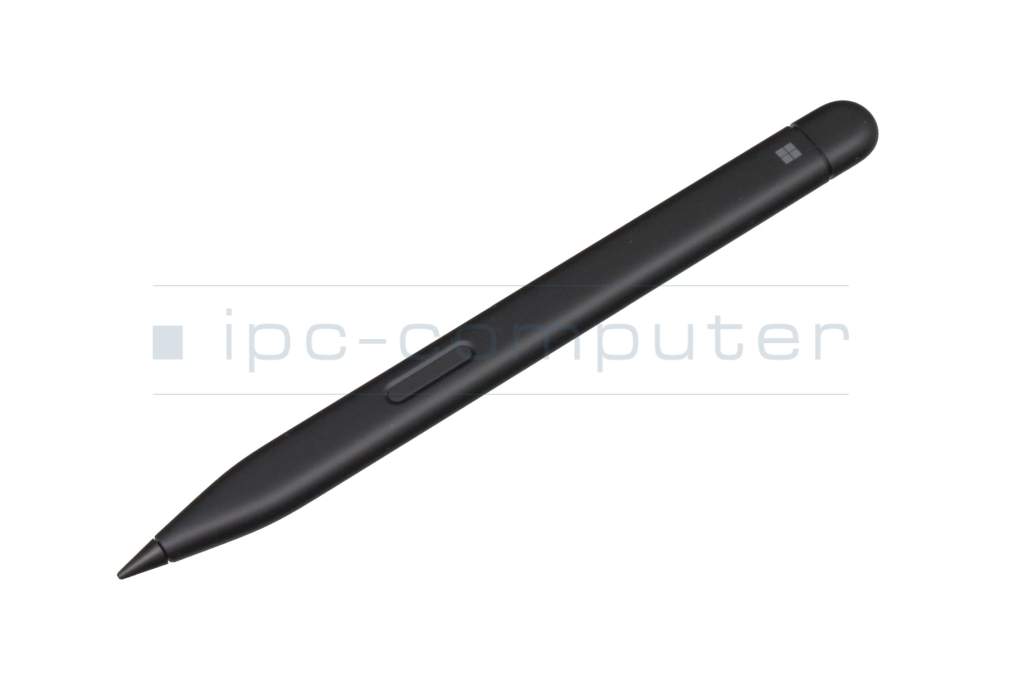

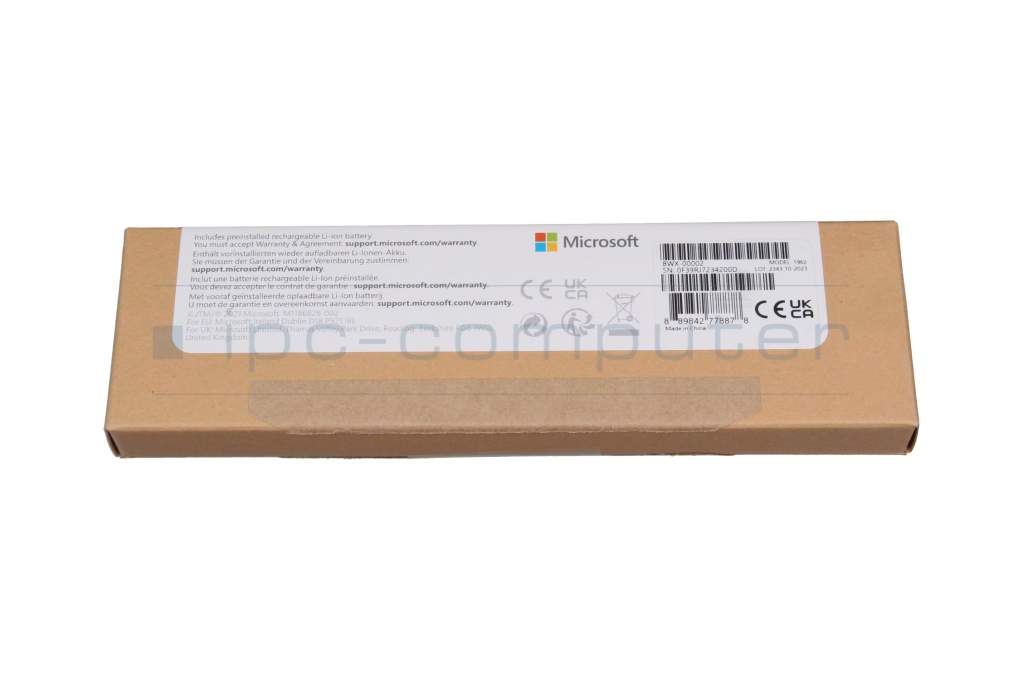
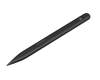





Universal MPP 2.0 Pen (USB-C) suitable for Microsoft Surface Go 3
plus shipping charges
Product Info
Common data
- Condition
- New
- Color
- black
- Delivery includes
- manual
Technical Data
- Pen protocol
- MPP 2.0
- Weight (g)
- 14 g
- Length (cm)
- 13.5 cm
- Number of buttons
- 2
- Pressure levels
- 4096
- Tilt function
- yes
- Power supply
- Wireless Charging
- Running time
- 15h
- Operating system
- Windows 10 / Windows 11
Surface Slim Pen 2
Elegant and comfortable
Exceptional accuracy, seamless workflow, better control.
Real-time creation with zero force freehand*
As soon as the pen touches the screen, freehand mode is immediately initiated.
The best shading experience
Thanks to a sharper pen tip and improved design, you can operate the screen at a perfect 77° tilt. This enables ultra-precise shading and exceptional pressure sensitivity of 4,096 points.
Easy and spontaneous erasure of content
Simply flip the Surface Slim Pen 2 over like a conventional pencil.
Tactile signals
Haptic feedback is supported on Surface Laptop Studio as well as Surface Pro 8 running Windows 11.
Compatible Microsoft models:
Surface Laptop 1 / 2 / 3 / 4
Surface Studio 1 / 2
Surface Book 3
Surface Pro 8 / 9
Surface Pro X
Surface Duo 1 / 2
Surface Hub 2S
Surface Go 1 / 2 / 3
Other future Microsoft devices as well as devices from other manufacturers with Microsoft Pen Protocol (MPP) possible. - Please note.
Notes:
*Zero-Force -Freehand only works when Surface Slim Pen 2 is used for Surface Pro 8, Surface Pro X, Surface Laptop Studio or Surface Duo 2.
Storage and charging of the Slim Pen in the Surface Pro Signature Keyboard, in the Surface Laptop Studio, in the Surface Duo 2 pen case, Surface Slim Pen Charger possible.
Battery life depends on usage, network and feature configuration, signal strength, settings and other factors.
For more information, drivers and updates, visit the Microsoft support website.
Category
- Category
- Pens / Stylus
- Usage
- Laptop
Videos & Contributions
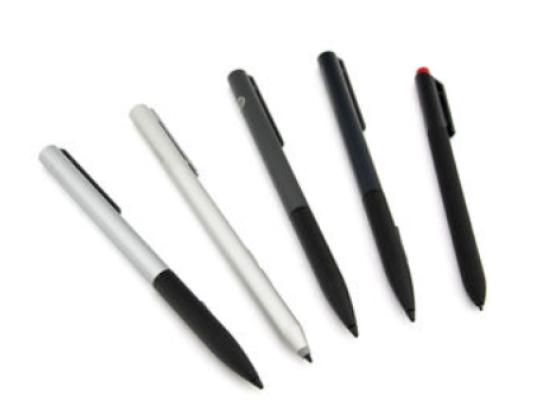
How do styluses work and what should be considered?