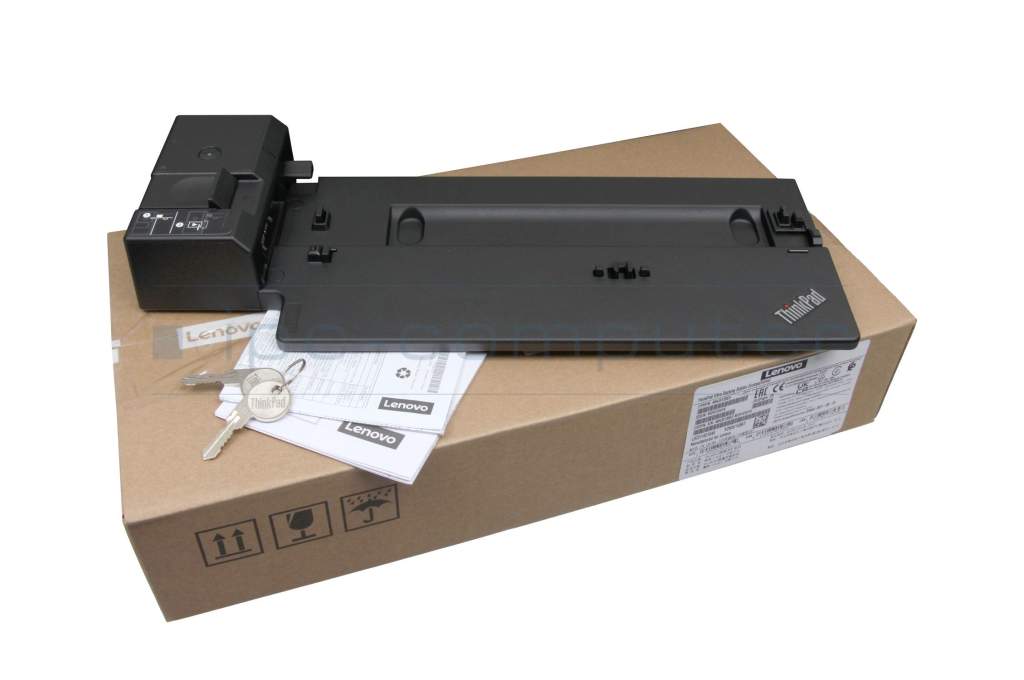
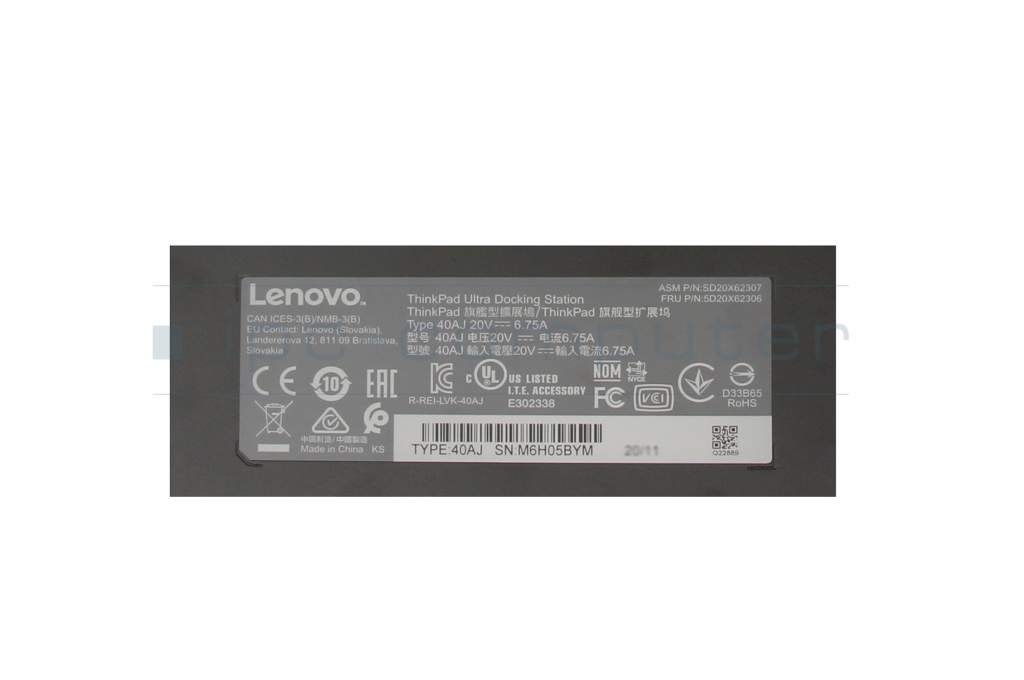
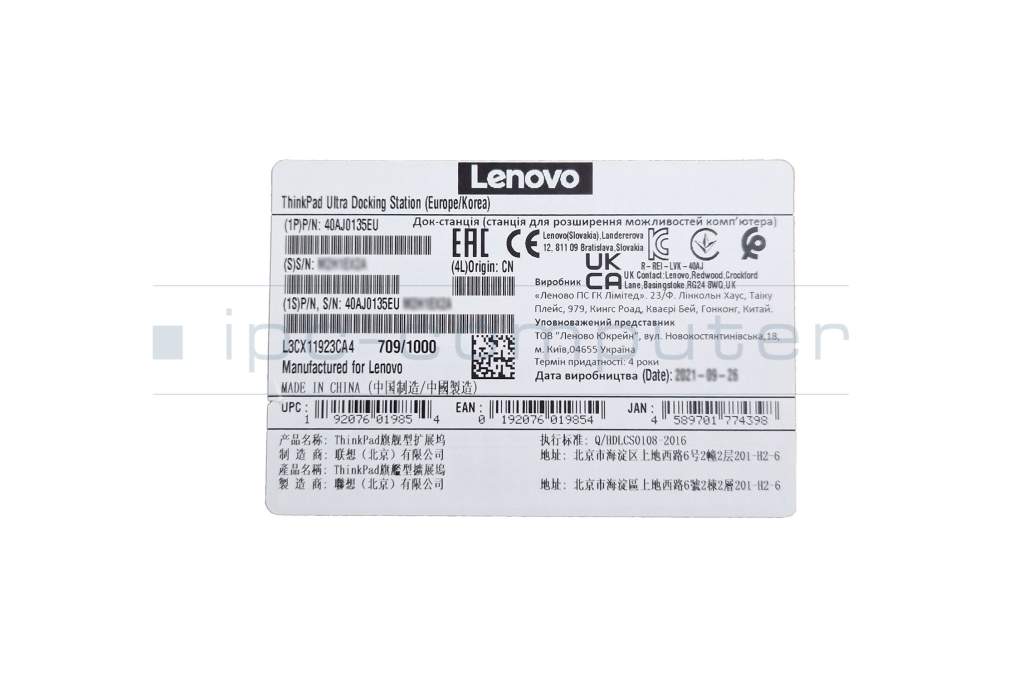
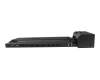
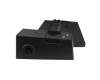
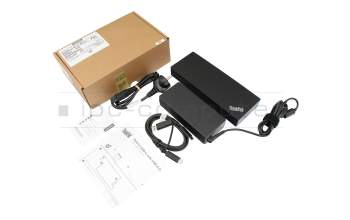
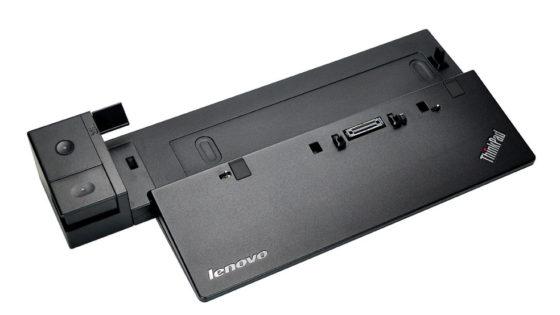
Lenovo ThinkPad X13 (20UF/20UG) Ultra Docking Station incl. 135W Netzteil

LENOVO Original
79.00
incl. Tax (19%)
plus shipping charges
In stock.
Express shipping possible.

Lenovo Hybrid-USB Port Replikator incl. 135W Netzteil suitable for ThinkPad X13 (20UF/20UG)

Lenovo Hybrid-USB Port Replikator incl. 135W Netzteil suitable for ThinkPad X13 (20UF/20UG)

In stock
176.00
incl. Tax (19%)
plus shipping charges

Product Info

Common data

Condition
New

Technical Data

Connexion to the laptop
Internal docking port
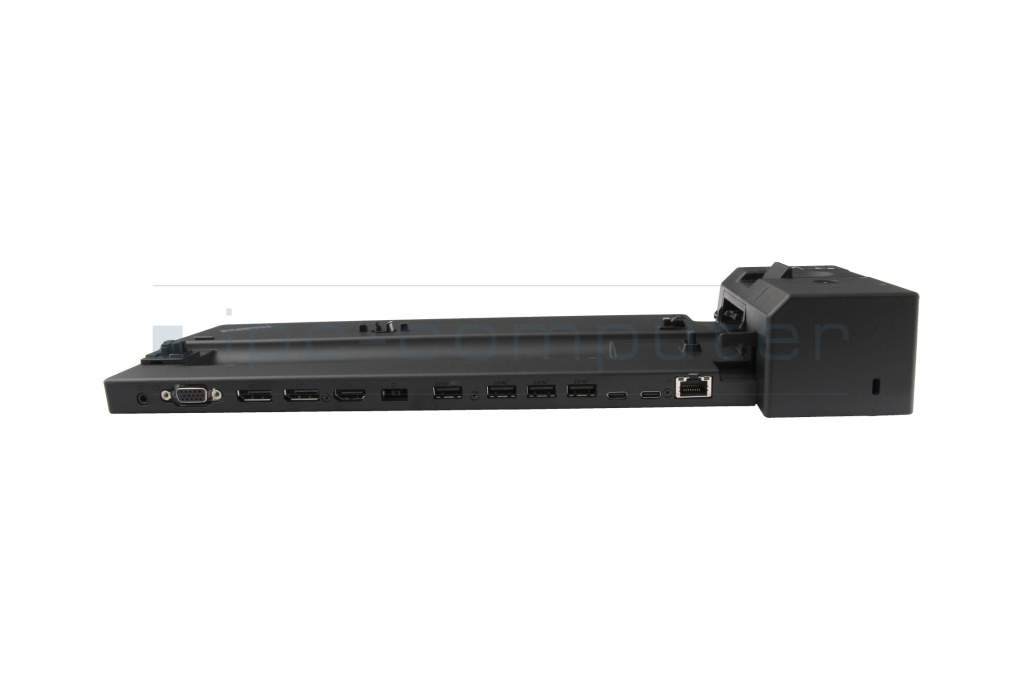
Connectors
1x Audio-Combo
1x DC-In (Power supply)
1x Ethernet (RJ-45)
1x HDMI 2.0
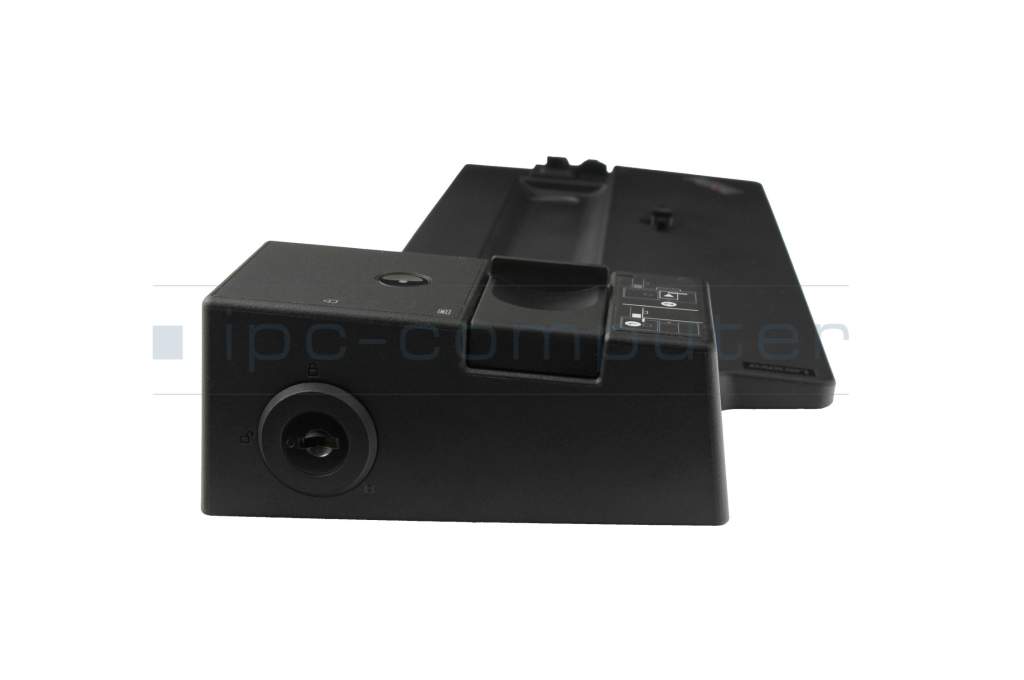
1x Kensington-Lock
1x VGA
2x DisplayPort
2x USB-C 3.2 Gen 2
4x USB-A 3.2 Gen 1
Max. resolution of external monitors
1x 4K2K - 4096x2160
1x QXGA - 2048x1536
2x 4K2K - 4096x2160
3x UHD - 3840x2160
Delivery includes
2x keys for security lock
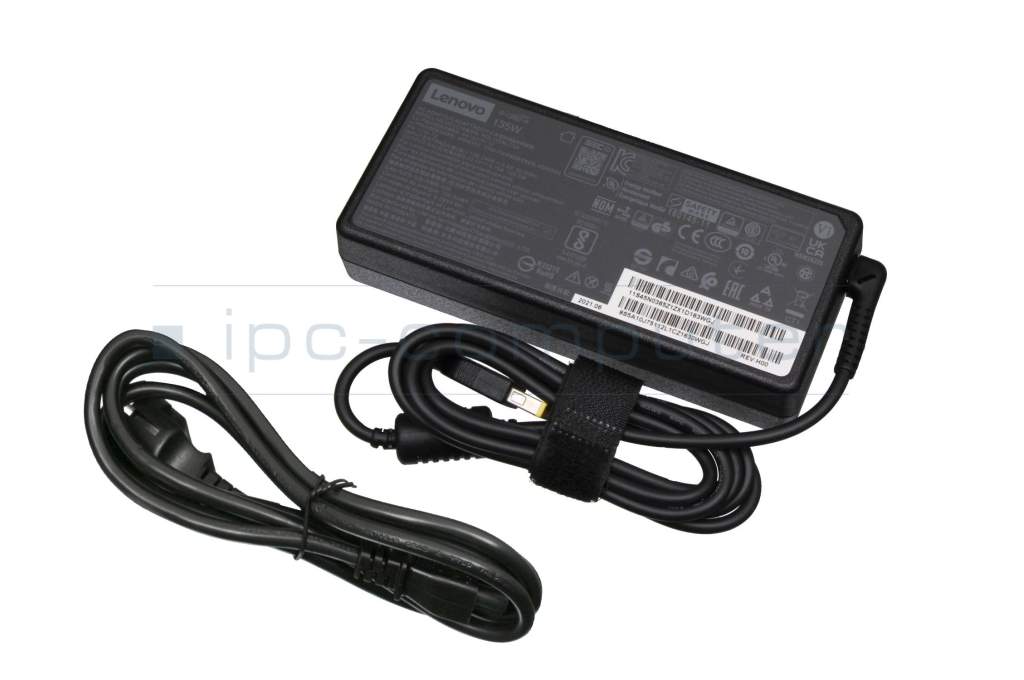
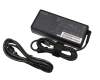
AC-Adapter
Docking Station
Power cable
Included ac-adaptor
135W
Compatible operating systems
Linux / Ubuntu
Windows 10 (32bit/64bit)
Windows 11
Windows 7 (32bit/64bit)
Windows 8 (32bit/64bit)
Windows 8.1 (32bit/64bit)
Length / Width / Hight
37,3 cm / 15.5 cm / 5.5 cm

Lenovo ThinkPad Ultra Docking variant with lockable latch for your laptop

Supports:
- Video playback in UHD resolution (4096 x 2160 at 60 Hz) via DisplayPort/HDMI
- Rapid charging of the laptop (Rapid Charge)
- PXE Boot
- Wake On LAN

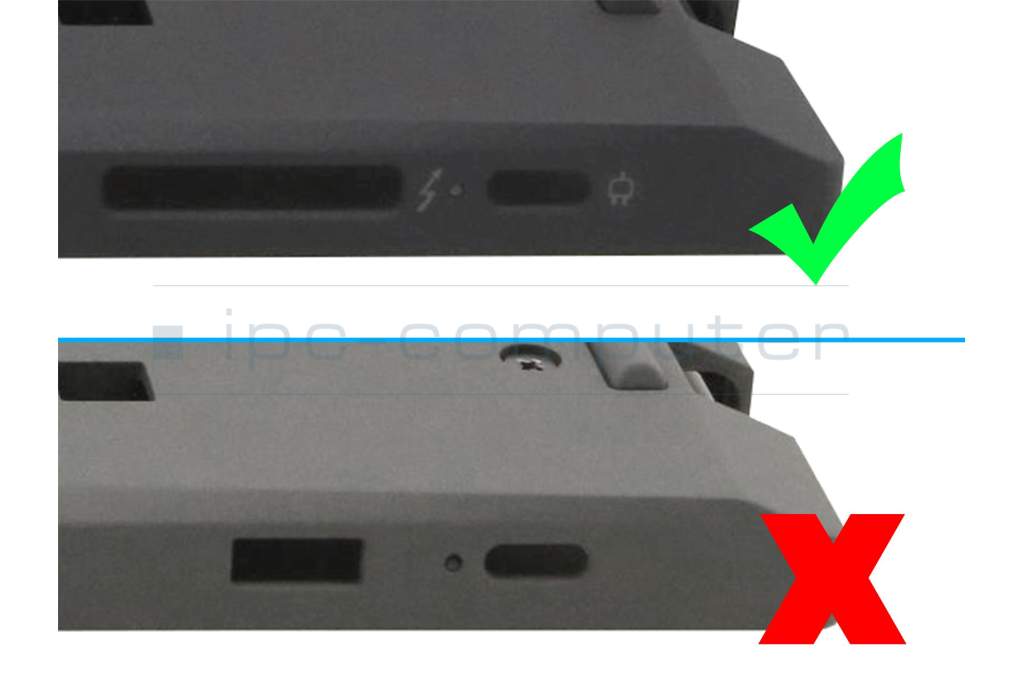
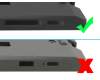
Note: Your laptop must have the required side port with charging function. Please compare the sample image with your device.

Attention: Some models of the Lenovo ThinkPad T15 Gen 2 (Type 20W4, 20W5) series were manufactured without Ethernet LAN functionality. The corresponding port on the Lenovo ThinkPad Ultra Dock is also not functional when used with some of these models. To find out whether your Lenovo ThinkPad T15 Gen 2 (Type 20W4, 20W5) is an affected device, contact Lenovo Support directly.

For full functionality, the manufacturer recommends using the Lenovo ThinkPad Hybrid USB-C Dock together with Lenovo ThinkPad T15 Gen 2 (Type 20W4, 20W5)

Category

Category
Dockings
Usage
Laptop

Videos & Contributions

Using a laptop with a dock even when it is folded down

In this quick tip we show how you can work with a docking station and an external monitor even when your laptop is folded down.

Learn more >
The

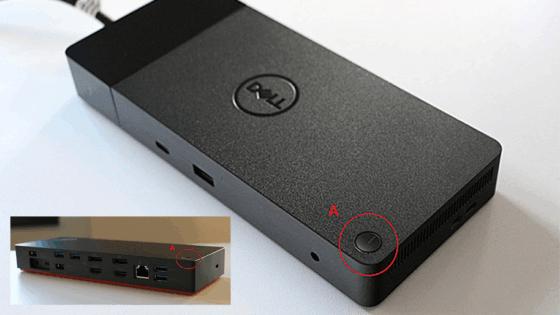
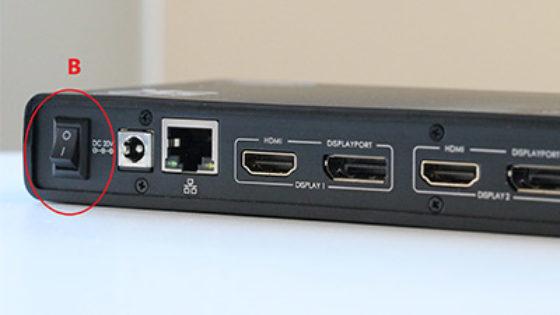
The "secret" with the power button

Why doesn't my notebook switch on when the docking station is switched on? Why does the power button on the docking station not work? Today we are getting to the bottom of these questions.
Learn more >
Docking station vs. port replicator

Docking station vs. port replicator

How does a docking station differ from a port replicator? This is a common question. In this post we would like to answer this question for you.
Learn more >
The power button does not activate the notebook?

The power button does not activate the notebook?

If the power button function of the docking station is not supported by the notebook. - "Wake On AC" can help
Learn more >

Important and useful informations about laptop Docking stations

FAQs specific to this article

  • What can I do if no connection to the docking station can be established?

    If the docking station does not respond despite the correct drivers, a complete reset of the hardware usually helps. To do this, follow these steps:

    1. Disconnect peripherals: Disconnect all connections from your docking station, including keyboard, mouse, monitors and other USB devices.
    2. Disconnect the power supply: Unplug the docking station from the socket and also disconnect the connection cable to the notebook.
    3. Perform residual discharge: Press the power button on the docking station that is not connected and hold it down for 30 seconds. This helps to discharge any residual charge in the capacitors.
    4. Restore connections: Now reconnect the notebook and all previously disconnected cable connections to the docking station.
    5. Restart: Plug the power plug back into the socket and switch on the docking station.

    After you have followed these steps, your docking station should be reinitialized by the system and work properly again.

    Why does this help? The docking station has its own small processors and controllers. Static charging or small software errors can cause these to enter a state in which they no longer respond. The 30-second discharge resets these components without losing any data.

Frequently asked questions about Docking stations

  • Can I use a USB-C/USB 3.0 port replicator from another manufacturer?

    Yes, this is generally possible. As standards such as USB-C, USB 3.0 and Thunderbolt work across all manufacturers, you are not necessarily tied to the brand of your laptop.

    However, to ensure that the docking station works properly, you should pay attention to the following points:

    • The right connection: Check whether your laptop has a USB-C port with DisplayPort Alt Mode (for image transmission) or a Thunderbolt connection. For older USB 3.0 ports, you will need a docking station with DisplayLink technology.
    • The required charging power: The docking station should provide enough watts to charge your laptop during operation. A device with 65W is sufficient for many office laptops, while powerful workstations often require 100W or more.
    • Drivers: While original docks are often recognized immediately, you may have to install drivers once for third-party providers so that all ports and monitors are addressed correctly.

    Tip: You can search for your specific laptop model in the IPC Shop. There we show you all docking stations across all brands that have been technically tested and are guaranteed to be compatible with your device.

  • Do docking stations still work if they can only be supplied with a more powerful power supply unit?

    Yes, this is technically completely harmless. A more powerful power supply poses no risk to your hardware, as the docking station and the laptop only draw as much power as they currently need.

    The only small disadvantage is usually the slightly higher price for a power supply unit with more watts.

    You should pay attention to this:

    • Overcapacity is safe: If you operate a docking station with a 130W power supply, even though your laptop only requires 65W, this is actually beneficial. The power supply gets less warm and offers enough reserves for additional USB devices.
    • Danger if the power supply is too weak: Only the reverse is critical. If the power supply unit is too weak, the docking station cannot pass on enough power to the laptop. The result: The battery charges extremely slowly (or not at all) and connected devices such as hard disks can lose their connection.
    • Voltage must be correct: While the wattage (power) may be higher, the voltage (volts) must match the docking station's specifications exactly.

    In short, a more powerful power supply is a good investment in the stability of your workstation. This will ensure that there is enough power left to charge your laptop even when all USB ports are fully occupied.

  • Do I need special drivers for my docking station or port replicator?

    No, usually not. With current Windows 10 or 11 systems, the necessary drivers are already included or are automatically installed in the background when the device is connected for the first time. An active Internet connection is required for this.

    If the docking station is still not recognized, these steps will help:

    • Check the manufacturer's website: Download the drivers directly from the manufacturer of the docking station or port replicator.
    • Windows Update: Check for updates manually, as Microsoft often adds suitable driver packages.
    • Device Manager: Use the "Update drivers" function to have Windows search for the appropriate software.
    • Special case DisplayLink: If your docking station uses DisplayLink technology, you usually have to install the appropriate manager manually so that the monitors show a picture.

    Tip: Also keep the chipset drivers of your laptop up to date so that the USB-C or Thunderbolt ports can communicate with the docking station without errors.

  • My docking station came with a power supply unit. Can I use it to charge my laptop during operation?

    Whether you can charge your laptop via the power supply of your docking station depends largely on the power, voltage and connection type.

    Here are the most important points you should check:

    1. Power:
      The power supply unit of the dock must deliver a higher power (watts) than the power supply unit of your notebook. Example: If your laptop comes with a 90-watt power supply unit, the dock should be equipped with at least a 120-watt power supply unit (130 watts is optimal). Only then will there be enough power available to charge the notebook during operation.
    2. USB-C or Thunderbolt:
      With USB-C docking stations or Thunderbolt, it is crucial that Power Delivery (PD) is supported and that the wattage is approx. 30-40 watts higher than that of the laptop power supply.
    3. Manufacturer compatibility:
      Some manufacturers such as Lenovo, HP or Dell use the firmware to check whether it is an original or certified power supply unit. Power supply units that are not recognized or are too weak can display error messages or charge the notebook insufficiently. IPC docks are 100% compatible with all manufacturers and can be purchased without hesitation and used without functional restrictions.

    We offer a large selection of suitable models in the store, which are always displayed with the corresponding laptop model.

    See also:

    See also:
  • What are the advantages of a Thunderbolt 4 or 5 dock compared to a USB-C dock?

    Thunderbolt 4 and Thunderbolt 5 differ significantly from conventional USB-C in terms of technology and performance, even though they use the same type of connector.

    Thunderbolt 4 compared to USB-C:

    • Guaranteed bandwidth: Thunderbolt 4 also uses the USB-C connection, but offers a guaranteed bandwidth of 40 Gbit/s - USB-C, on the other hand, usually only 10 to 20 Gbit/s, depending on the version (e.g. USB 3.2 or USB 4).
    • More monitors: It supports the simultaneous operation of two 4K monitors or an 8K display, while USB-C can usually only control an external display with a lower resolution.
    • Safe charging: Thunderbolt 4 delivers up to 100 W charging power (Power Delivery) and can transfer data, image and power via one cable.
    • Daisy-chain: Thunderbolt 4 also enables daisy-chain connections, i.e. connecting several devices (e.g. monitors, storage drives, docks) in series via just one connection - a function that does not work reliably with normal USB-C.

    Thunderbolt 5 compared to Thunderbolt 4 and USB-C:

    • Extreme speed: Thunderbolt 5 doubles the bandwidth to 80 Gbps and can dynamically increase to 120 Gbps for video output if required - ideal for multiple 8K displays or high-end VR solutions.
    • Enormous power: It supports a charging power of up to 240 W, allowing even powerful workstations or gaming laptops to be operated efficiently.
    • Stability: Thanks to an improved signal architecture, Thunderbolt 5 enables more stable transmissions and lower latencies - especially for professional users with high demands on data, image and audio performance.
    • Compatibility: Like Thunderbolt 4, Thunderbolt 5 is fully backwards compatible with USB4 and USB-C devices, so existing accessories can continue to be used.

    In short:
    USB-C is the universal all-round connection for everyday applications, while Thunderbolt 4 and especially Thunderbolt 5 are designed for professional users with high demands on speed, graphics performance and power supply. Thunderbolt 5 sets a new performance standard in the field of external expansion solutions for laptops and workstations

    Here you can find Thunderbolt 4 and 5 docks as well as USB-C docks: Link to IPC-Shop.

  • What dangers should you be aware of when connecting a docking station to your laptop?

    Although docking stations are extremely practical, there are some risks you should be aware of to protect your hardware:

    • Power supply overload: If the docking station provides too little or too much power (watts), the laptop may not charge properly or may overheat.
    • Cheap or inferior docks: Cheap, uncertified products can lead to short circuits, overheating or data loss.
    • Recommendation from the Notebook-Doktor: Only use original branded goods or IPC-Computer docks.
    • Incompatible connection: An incorrect or poorly supported USB-C/Thunderbolt port can cause hardware errors or failures.
    • High current load on USB ports: If too many devices (external hard disks, monitors, chargers) are connected at the same time, voltage drop or instability may occur.
    • Driver or firmware errors: Outdated software can cause disconnections or even system crashes → Update drivers and firmware regularly.
    • Overheating during continuous operation: Sufficient ventilation should be ensured for heavily loaded docks (many monitors, devices, LAN).
    • Firmware security vulnerabilities: Some Thunderbolt docks can theoretically have security vulnerabilities. Up-to-date firmware protects you from such risks.

    Here you can find secure docking stations from HP, DELL, Lenovo and IPC-Computer - link to the store.

All questions about Docking stations

loader

Accessories, suitable alternative products and recommendations

45N0501 original Lenovo AC-adapter 135.0 Watt extended
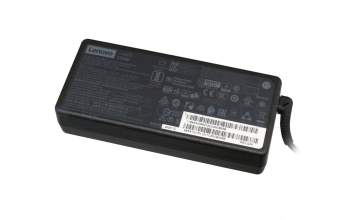
45N0501 original Lenovo AC-adapter 135.0 Watt extended
In stock
49.00
incl. Tax (19%)
plus shipping charges

IPC-Computer KA001I 8K DisplayPort to DisplayPort
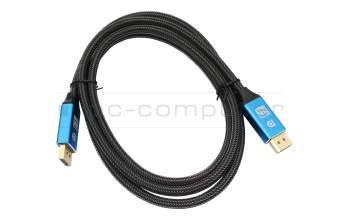
IPC-Computer KA001I 8K DisplayPort to DisplayPort
In stock
14.00
incl. Tax (19%)
plus shipping charges

IPC-Computer KA002I 4K HDR DisplayPort to DisplayPort
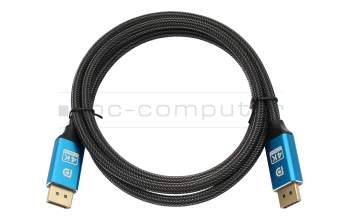
IPC-Computer KA002I 4K HDR DisplayPort to DisplayPort
In stock
14.00
incl. Tax (19%)
plus shipping charges

IPC-Computer KA003I 4K HDMI to HDMI
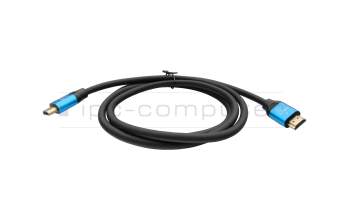
IPC-Computer KA003I 4K HDMI to HDMI
In stock
14.00
incl. Tax (19%)
plus shipping charges