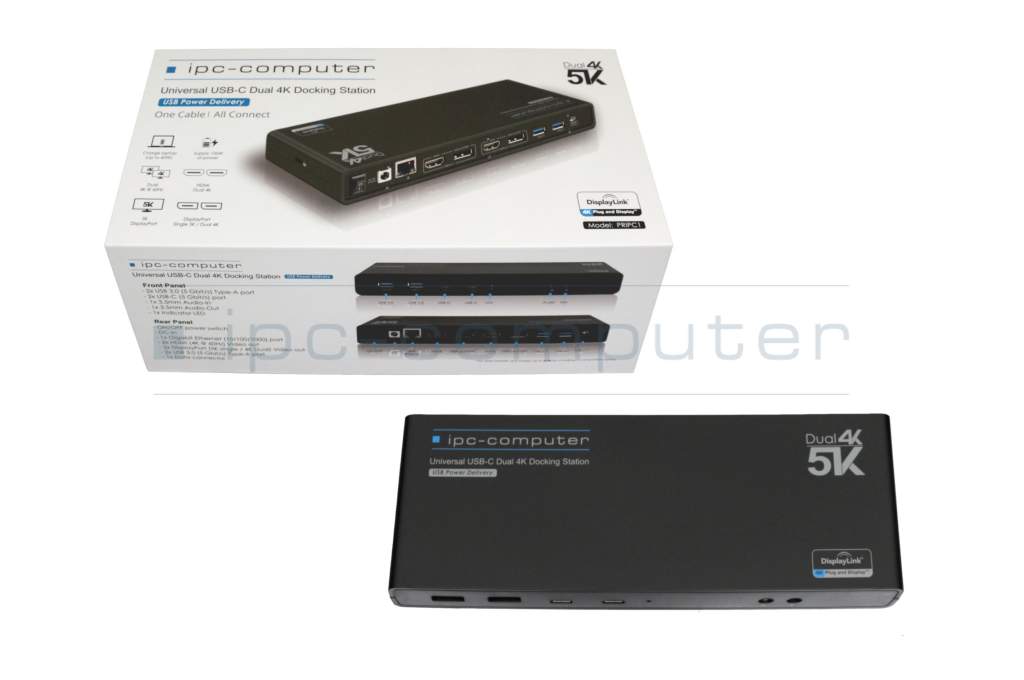
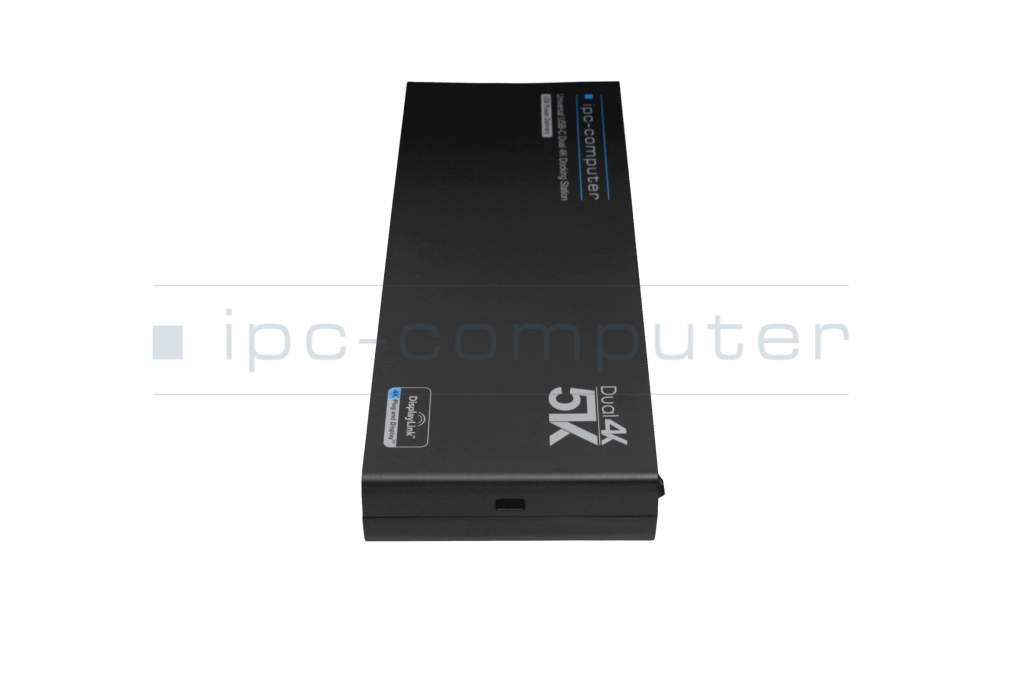
PRIPC1 IPC-Computer Dual 4K Hybrid-USB Docking Station incl. 130W Netzteil




plus shipping charges
- Standardlieferung 29. September - 30. September
- Expresslieferung 29. September
- bei Bestellung innerhalb 12 hrs 29 min




In addition to common Microsoft Windows devices, this dock also supports the Apple MacBook Neo, Air/Pro M1, M2 and M3, as well as Macbook Pro 2020 Intel

PRIPC2 IPC-Computer TB4 Quad-Display Docking Station incl. 160W ac-adapter
plus shipping charges
Product Info
- Manufacturer
- IPC-Computer
- Item Number
- PRIPC1
- Safety information
- Sicherheits- & Herstellerkontakt-Informationen
Common data
- Condition
- New
Technical Data
- Connexion to the laptop
- USB-C / USB-A
- Connectors
-
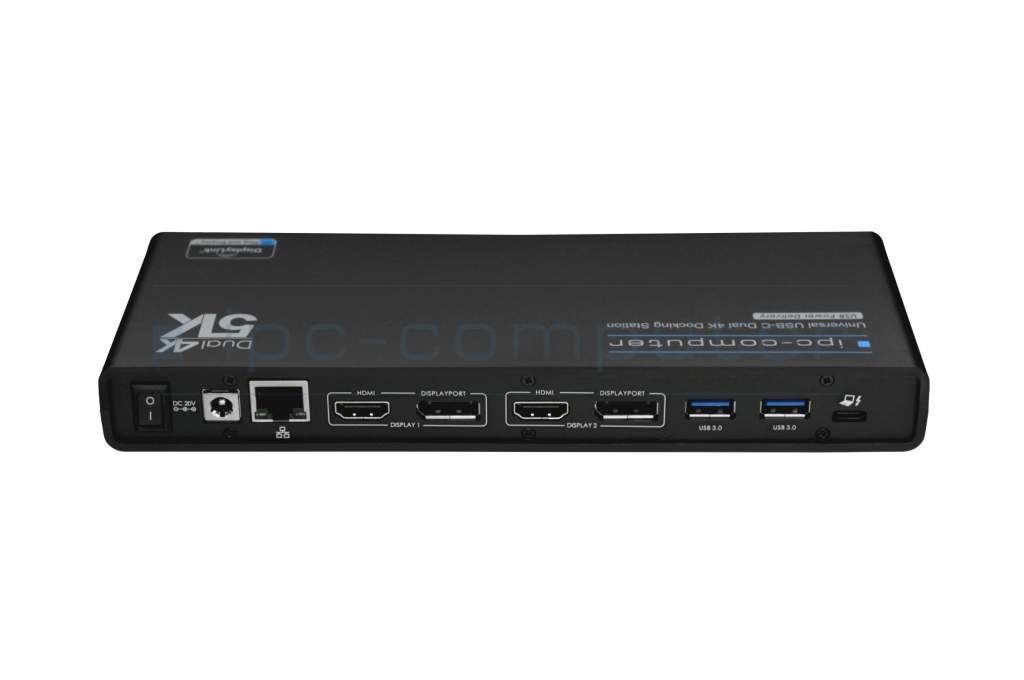
1x DC-In (Power supply)
1x Ethernet (RJ-45)
1x Kensington-Lock
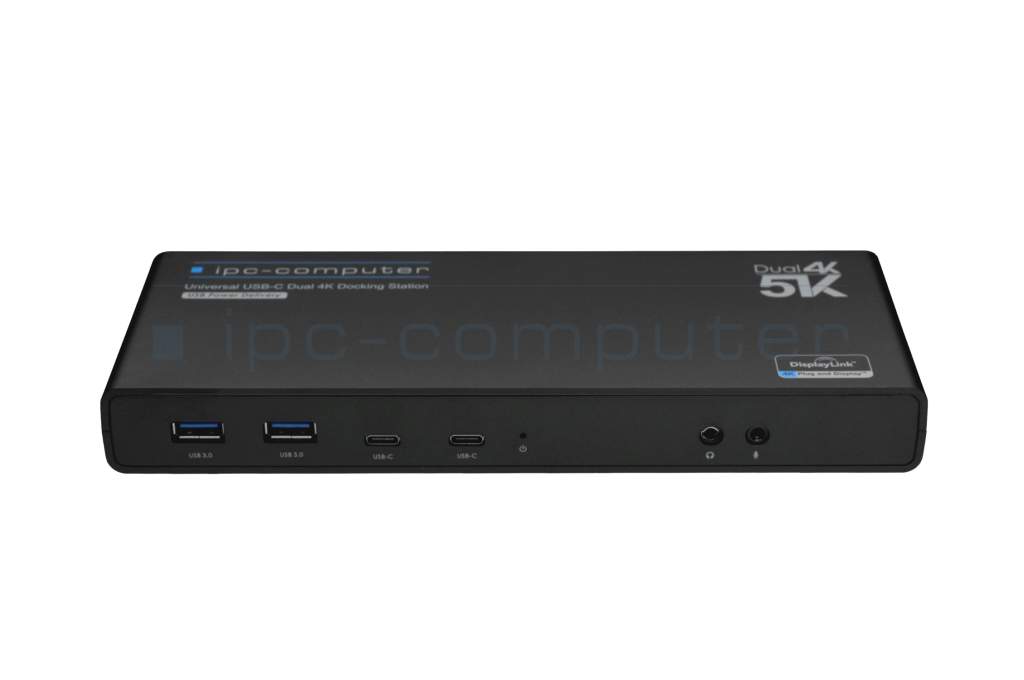
1x headphone (line-out)
1x microphone (line-in)
2x DisplayPort 1.2
2x HDMI 2.0
2x USB-C 3.2 Gen 1
4x USB-A 3.2 Gen 1 - Max. resolution of external monitors
-
1x UHD+ - 5120x2880 @ 60Hz
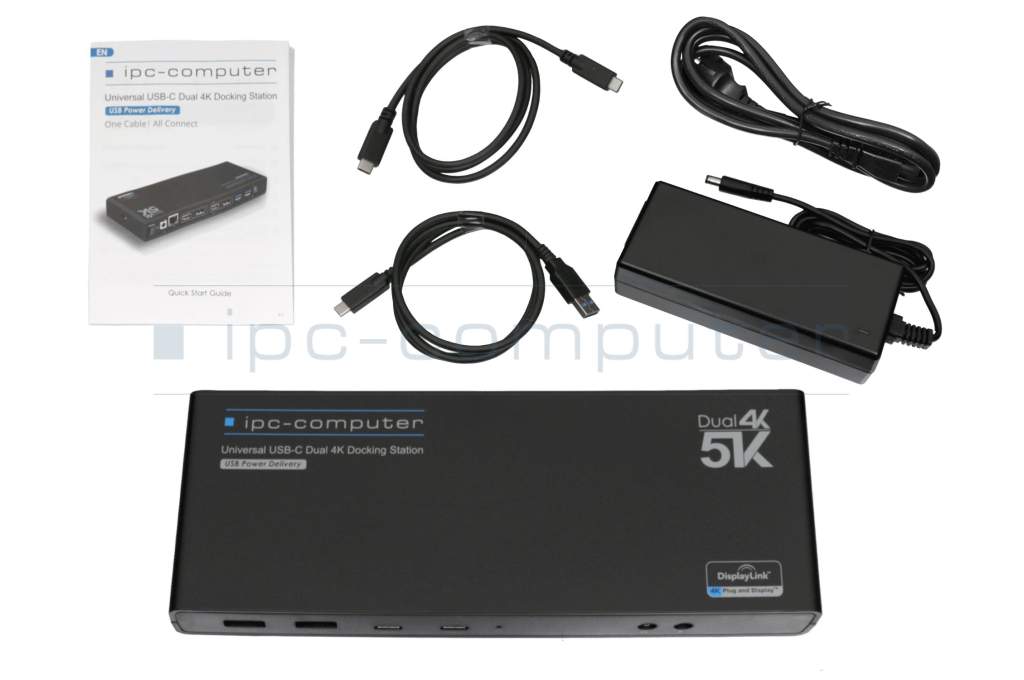
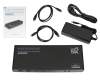
2x 4K2K - 4096x2160 @ 60Hz - Delivery includes
-
AC-Adapter
Docking Station
Manual
Power cable
USB-A 3.0 cable
USB-C cabel - Included ac-adaptor
- 130W
- Compatible operating systems
-
Linux / Ubuntu
Mac OS
Windows 10 (32bit/64bit)
Windows 11
Windows 8.1 (32bit/64bit) - Length / Width / Hight
- 22.3 cm / 8 cm / 2.6 cm
Advantages
IPC's in-house port replicator brilliantly meets all the requirements you could possibly need from a port replicator. It's model and manufacturer-independent and can be connected to any available USB port. This allows you to use your laptop even when it's closed. Further information can be found here.
No more cable clutter
With its simple and modern design, the IPC port replicator is a perfect fit for any modern workplace, consolidating numerous cables in one place. It eliminates the time-consuming task of connecting all peripheral devices upon returning to work and allows you to use your laptop flexibly and on the move.
Wide Compatibility
In addition to common Microsoft Windows 10/11 devices, this dock also supports the Apple MacBook Neo, Air/Pro M1, M2, and M3, as well as the 2020 Intel MacBook Pro and devices with the Ubuntu operating system.
Up to 8 peripheral devices (including 2 monitors)
The PRIPC1 doesn't skimp on specifications either. A standout feature is its support for up to two 4K/2K monitors. Alternatively, it also supports the connection of a 5K monitor. The refresh rate is a smooth 60Hz. Furthermore, its numerous ports allow you to connect accessories as desired. The IPC Port Replicator has four USB 3.0 ports for a mouse, keyboard, printer, and other equipment. Its two USB-C ports complete the extensive connectivity options.
Charging via USB-C
With the included power adapter, the laptop, if it supports it, can be powered and charged via USB-C with up to 100W via the IPC Port Replicator. An additional power adapter is not necessary.
Note
Compare the power (wattage) of your laptop's compatible power adapter with the power adapter included with this docking station. Please note that the included power adapter supports a maximum of 100W. If your laptop has a higher power consumption, you will still need your laptop's power adapter.
When connecting the laptop via a USB 3.0/2.0 port, a power adapter must still be connected to the laptop, as charging is technically not possible with this type of connection.
USB-C ports on laptops that are labeled "data transfer only" by the manufacturer do not support the full functionality of a docking station. In this case, image transfer to the connected displays is generally not possible, and charging a laptop is only possible with devices with a suitable USB-C or Thunderbolt port. You can find relevant information for your device in the manual or contact the manufacturer directly.
Driver and manual for the Universal USB-C port replicator from IPC-Computer
| If you need drivers for the IPC port replicator, you can download them here. | Driver Download |
| The manual for the IPC port replicator can be viewed and downloaded here. | Manual download |
Category
- Category
- Dockings
- Usage
- Laptop
- Excerpt of suitable models for P/N PRIPC1
- Acer Aspire 5560 , Acer TravelMate 5514WLMi , Acer Aspire 7220 , Acer Aspire 5920 , Acer Aspire 7520G , Acer Extensa 5610G , Acer TravelMate 5730 , Acer Aspire 7230 , Acer TravelMate 6593 , Acer Aspire 5330
You've found this article over a part number. We'll check if it's the correct sparepart for your machine. To do this, please insert the manufacturer and the name of the model in the order comment.
Videos & Contributions
Looking for the right docking station?
For many, port replicators are already an integral part of the home office or the office. In this video we introduce you to our in-house IPC computer docking station in more detail.
Learn more >Using a laptop with a dock even when it is folded down
In this quick tip we show how you can work with a docking station and an external monitor even when your laptop is folded down.
Learn more >Which USB dock connector do I need for my notebook?
To choose the right docking station for your notebook, you should know which USB port you need. In this video, we will go into the differences and special features of the USB ports.
Learn more >4 externe Monitore an Apple MacBook M1 M2 anschließen - Tutorial
?Portreplikator: https://www.ipc-computer.de/notebook-ersatzteile/docking-stations/docking-station-pripc1-69783531/nup?utm_source=YouTube+Notebook-Doktor&ut...
Learn more >2 Monitore am Linux Ubuntu Notebook verbinden - So gehts!
Display Link Treiber:https://www.synaptics.com/products/displaylink-graphics/downloadsPRIPC1 Dual 4K Hybrid-USB Docking Station:https://www.youtube.com/watch...
Learn more >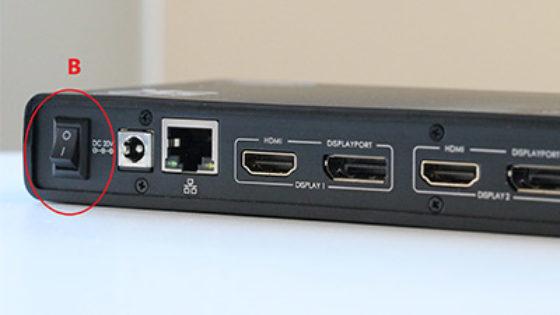
The "secret" with the power button
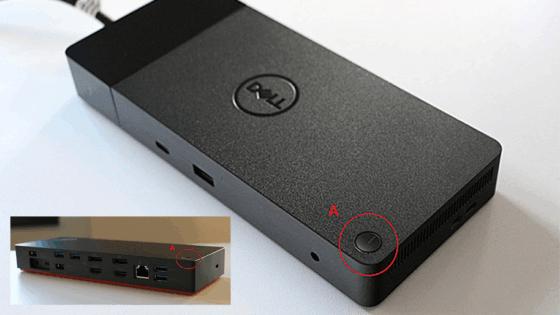
The power button does not activate the notebook?
Two external monitors on the MacBook Air / Pro with an M1 chip
A widespread problem is the use of two external monitors on the Apple MacBook Air / Pro with the M1 chip. But our trainee Veronica will show you how this is possible with our IPC computer dock.
Learn more >Important and useful informations about laptop Docking stations
FAQs specific to this article
If you are no longer able to connect multiple screens via your PRIPC1 docking station after the last Windows update and you receive the error message DisplayLink USB Graphics Device: Driver error, your docking station is not defective. There are two possible solutions:
1. install the latest display drivers Please try to download and install the latest display drivers directly from the manufacturer.
2. uninstall the Windows update If updating the drivers does not solve the problem, you can try to manually remove the last installed Windows update:
- To do this, open "Settings" by selecting the "Gear" in the Start menu.
- Then click on "Update & Security".
- In the "Windows Update" tab, select the "Show update history" option.
- Then click on "Uninstall updates".
- Select an update here, the updates are sorted chronologically and the latest one is displayed at the top. Click on "Uninstall" and confirm by clicking on "Yes".
Caution: Not all Windows updates can be uninstalled. If uninstalling is not possible or does not solve the problem, you will unfortunately usually have to wait for a subsequent Windows update that fixes this error on the part of Microsoft.
Expert tip: To avoid such problems in the future, you can activate the notifications in the DisplayLink Manager. This will let you know immediately when a new software version is available that has been specially adapted to the latest Windows changes.
If the sound is running on Netflix but the picture remains black, it usually helps to deactivate hardware acceleration in Firefox. Simply proceed as follows:
- Open settings: Click on the menu with the three bars in the top right-hand corner of Firefox and select Settings.
- Find the Performance section: In the General tab, scroll down until you see the Performance section.
- Disable hardware acceleration: First uncheck Use recommended performance settings. Only then will the Use hardware acceleration if available option appear. Remove the tick here too.
- Restart browser: Close Firefox completely and restart it.
Netflix's copy protection should now work correctly with your browser again and the image should be displayed as usual.
A small note: If you are using a docking station with DisplayLink technology, the problem may also be due to the general copy protection (HDCP). In this case, deactivating hardware acceleration will unfortunately not help, as DisplayLink technically prevents the playback of protected content on external monitors.

DisplayLink is a software solution for image transmission. As the signal is sent compressed via the USB channel, the following points arise:
- No Netflix and co. (HDCP problem): Due to copy protection, services such as Netflix, Disney+ or Amazon Prime remain black on DisplayLink monitors. This content only works on the MacBook display or on natively connected monitors.
- Higher CPU load: As the main processor has to calculate the image, the MacBook can get a little warmer when performing very CPU-intensive tasks. With M1 chips and newer, however, this is hardly noticeable in everyday use.
- Limited gaming suitability: The technology is ideal for office work. For professional gaming, however, the slight delay (latency) and the refresh rate, which is usually limited to 60 Hz, are a disadvantage.
- Driver dependency: The DisplayLink Manager must always be running in the background. After macOS updates, it is occasionally necessary to update the driver. In addition, screen recording must be enabled once in the system settings.
- Additional features: Functions such as the monitor pivot (rotation) or operation with the lid closed (clamshell mode) usually work without problems with the current drivers, but depend on the software version.
DisplayLink is the perfect solution for bypassing the monitor limits of Apple chips in the home office. A native connection is the better choice for home cinema evenings or fast gaming.
Windows: Yes, this is possible without any problems. All you have to do is select the appropriate monitor in the Windows display settings and change the value for the screen orientation option to portrait format.
macOS: No, unfortunately this is not possible. As the docking station works under macOS in combination with the DisplayLink software, there are technical restrictions here. Unfortunately, DisplayLink does not currently support vertical use (pivot function) under macOS.
Tip: If you want to use a monitor vertically on the Mac, it must be connected directly to the MacBook (e.g. via USB-C or HDMI) and not via the DisplayLink docking station.
Yes, you can operate both a MacBook Air and a MacBook Pro with M1 or M2 chip with the docking station without any problems.
Here are the most important details for you:
- Compatibility: Although the M1 and M2 processors differ in terms of performance, they use the same architecture for video output via USB-C or Thunderbolt.
- Special feature at Apple: Apple often only allows the connection of a single external monitor with the standard M1 and M2 processors. With the DisplayLink technology of our docking station, however, you can bypass this restriction and use multiple screens on your MacBook.
- Driver: For everything to work smoothly, you need to install the latest DisplayLink Manager on your Mac and enable screen recording in the system settings.
Tip: With the MacBook Air, make sure that the docking station provides sufficient charging power. As the Air does not have its own charging port, it is supplied with power via the same cable that your monitors and USB devices use.
Yes, this is possible without any problems. If you want to connect two external monitors, please pay attention to the labeling of the ports on the docking station.
To operate two monitors, one port from the Display 1 group and one port from the Display 2 group must be assigned. It does not matter whether you choose HDMI or DisplayPort. For example, you can use two HDMI cables, two DisplayPort cables or a combination of both.
No, we do not recommend this. In the past, there have always been compatibility problems between the Mac mini and DisplayLink technology.
We therefore do not recommend using the docking station with the Mac mini in order to guarantee the stable functioning of your hardware. It is best to use the HDMI and Thunderbolt ports directly on the Mac mini for your monitors.
After a major software update from Apple, such as to macOS Ventura, Sonoma or more recent versions, it can happen that the docking station no longer recognizes monitors. This is usually because the installed DisplayLink driver is no longer compatible with the new system architecture.
How to solve the problem:
- Load the latest driver: Visit the official DisplayLink download page.
- Select the appropriate version: Download the latest version of the DisplayLink Manager for your operating system. As a rule, the latest version fixes all problems caused by Apple updates.
- Check permissions: After installation, you must check under Privacy and Security in the System Preferences whether the screen recording access for the DisplayLink Manager is still active. macOS often resets this permission after an update for security reasons.
You can find the link to download the latest drivers here: DisplayLink drivers for macOS.
Tip: It is advisable to check the Synaptics website after every major macOS update, as Apple often makes far-reaching changes to the graphics system to which the DisplayLink driver must respond.
Frequently asked questions about Docking stations
All questions about Docking stations
Docking stations FAQ
Accessories, suitable alternative products and recommendations
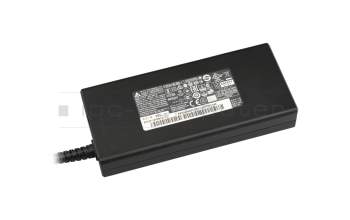
0A001-00083700 Asus AC-adapter 150.0 Watt small from Delta Electronics
plus shipping charges
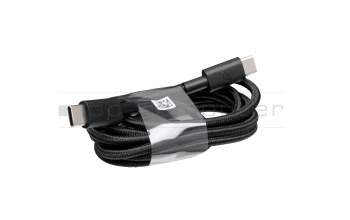
14016-00176500 original Asus USB-C data / charging cable black 1,20m
plus shipping charges
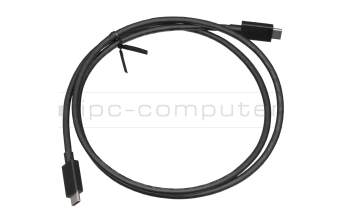
14011-02511000 original Asus USB-C data / charging cable black 1,10m 3.1
plus shipping charges
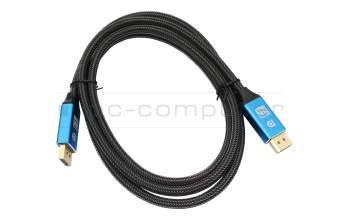
IPC-Computer KA001I 8K DisplayPort to DisplayPort
plus shipping charges
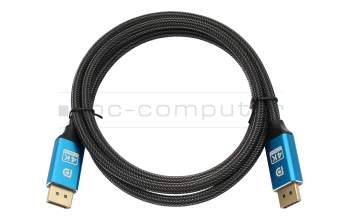
IPC-Computer KA002I 4K HDR DisplayPort to DisplayPort
plus shipping charges
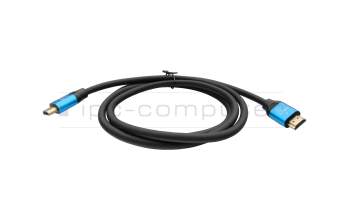
IPC-Computer KA003I 4K HDMI to HDMI
plus shipping charges